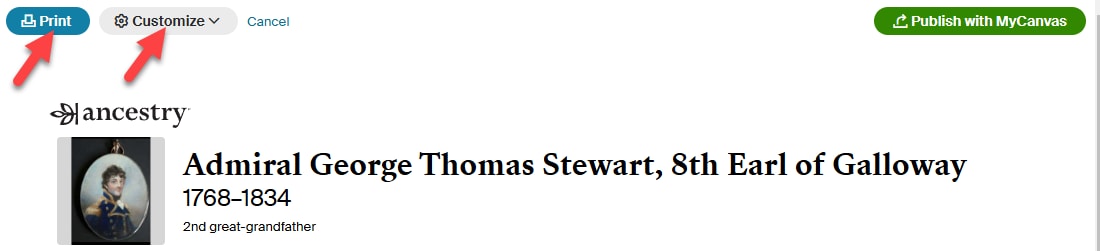
A LifeStory on Ancestry® connects facts from a person’s life together into a story. The information used to create a LifeStory comes from the dates, records, and relationships that you've attached to that person and to their close relatives in your tree. If you've saved information from Historical Insights®, you may also see national and historical events from the time and place they lived.
Family information can be turned off.
Viewing a LifeStory
- Go to the profile page of a person in your tree.
- On their profile page, click the LifeStory tab.
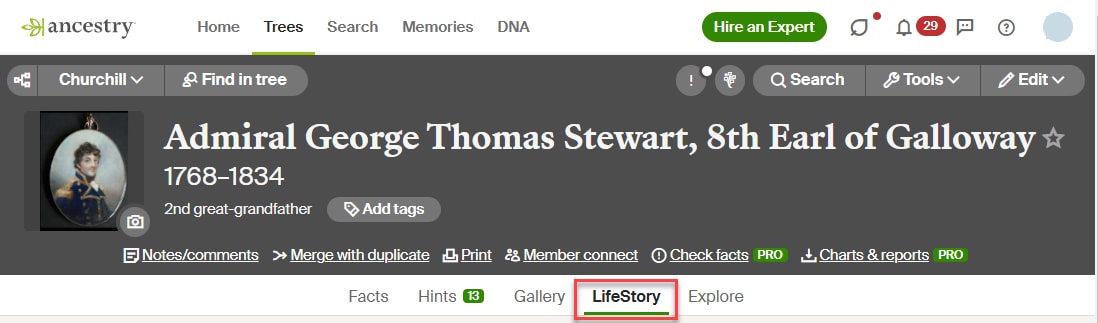
- Scroll down the page to see the LifeStory.
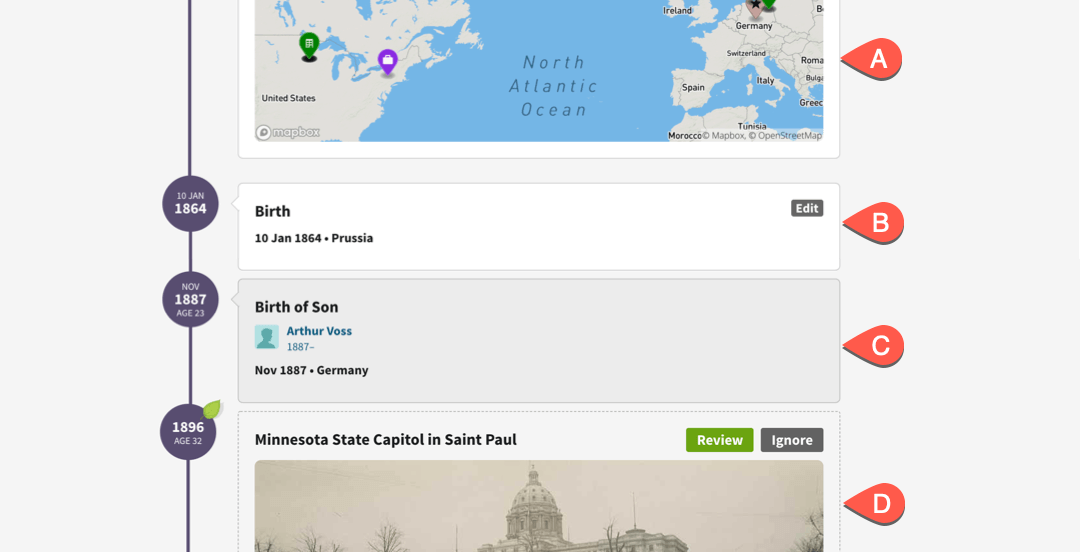
- The map at the top shows the places that person lived.
- Facts that have a white background and an Edit button are facts you’ve entered for that person. You can change or delete these.
- Facts with a gray background are family events—events in the lives of the person’s immediate family. You can turn off all family events, but you can only remove family events one by one if you delete a fact from the person it’s connected to. In this example, the family event is the birth of this person's son, Arthur Voss. To remove just this family event, you’d need to either go to Arthur’s profile page and delete his birthdate or disconnect Arthur from the rest of the family. You can turn off all family events by clicking Show at the top of the page and unchecking Family events.
- Facts involving historical people or events are Historical Insights®. We previously included national and historical events in a LifeStory. Any previously saved historical insights will display on LifeStory, but Ancestry will no longer recommend new historical insights. To make specific Historical Insights disappear, click Ignore. This is irreversible.
Editing a LifeStory
Edit a fact in or add a photo to a LifeStory by clicking Edit for that event. Only the events for the person whose LifeStory you're in (the events with a white background) will have an Edit button. Events with a gray background are events from the life of a family member, and they can be changed from that family member's profile.

Enable or disable family events by clicking Show and checking or unchecking Family events. If you have any saved Historical Insights, you can also check or uncheck Historical Insights from this menu.
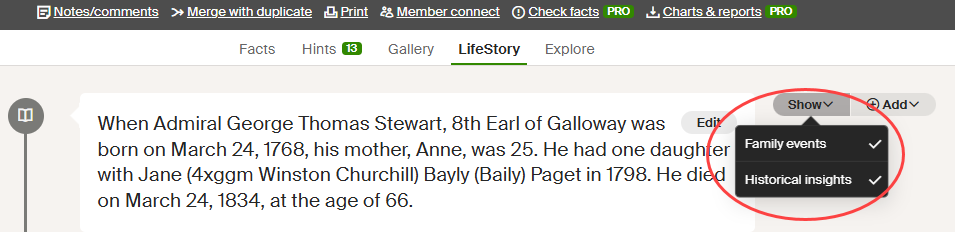
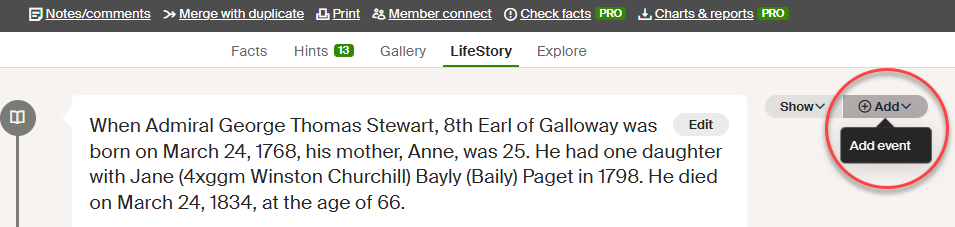
Add new events by clicking +Add and selecting Add event.
Printing a Lifestory
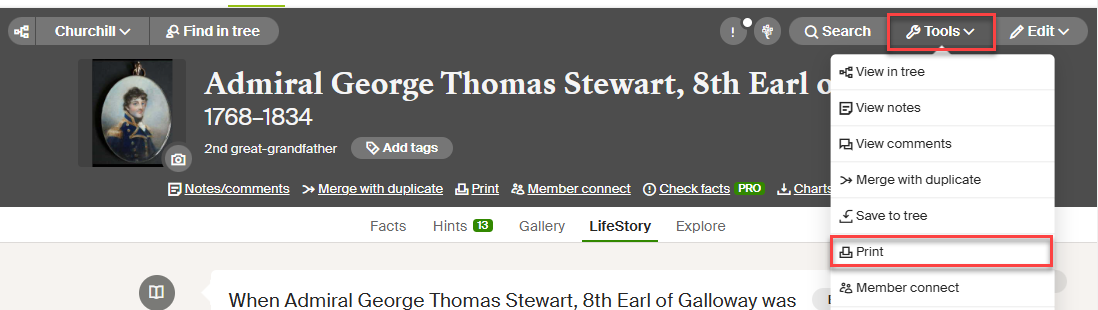
- From the LifeStory tab of a profile page, click Tools and select Print.
- To choose which parts of your LifeStory to print, click Customize and select or deselect options. To print, click Print.