To view record images, open a record detail page and click on the record to see it. To share a record via email, Facebook, or X, go to a record and click Share  on the right side of the page.
Finding a record image
After searching for a record, click on a record title. From the record detail page, click the record thumbnail.
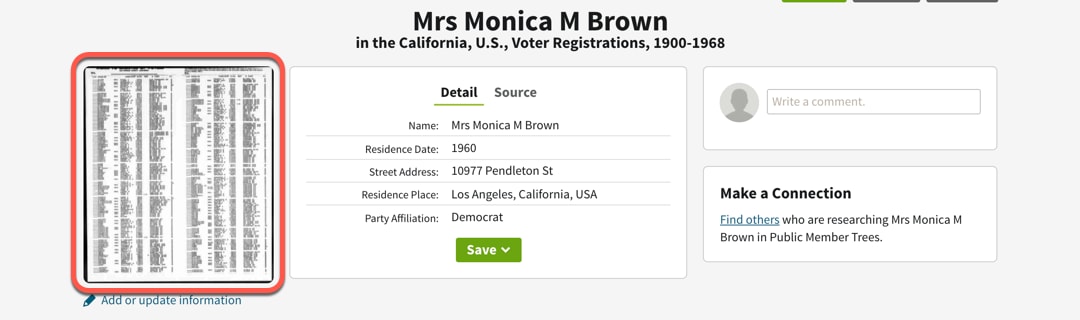
Viewing record details
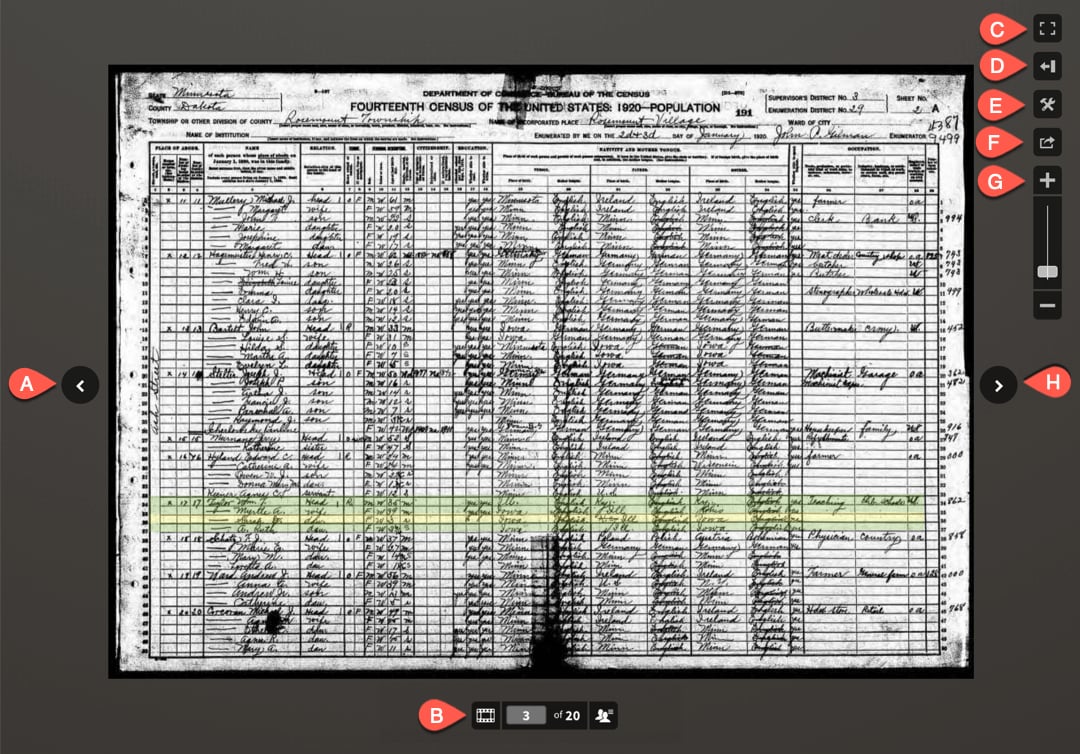
- Go to previous pages in the record collection.
- Click the filmstrip to see various pages from the collection displayed along the bottom of the screen. The page number shows where you are in the collection, and the index button (the two heads) open the index panel, where you can view a transcription of the record.
- View the record in full screen mode.
- Click the detail panel to see source and transcription information.
- Open the tools menu to print, download, or share the record, to turn hints and helps on or off, or to rotate or flip the image or to invert the colors on the record.
- Share the record via email, Facebook, or X.
- Zoom in or zoom out to see the record larger or smaller.
- Go to later pages of the record collection.
Printing or downloading
- Click on the record image and drag the page to the area you’d like to capture. You can also move the image using the arrow buttons. Use the plus + and minus - symbols on the right side of the page to zoom into the area you'd like to print. To print the whole page, skip to the next step.
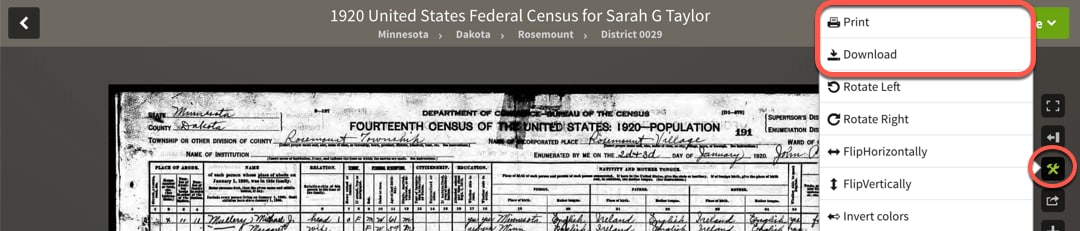
- On the right side of the page, click the tools icon and to print, click Print; to download the record, click Download. If you clicked Download, find and open your file. If you clicked Print, go on to the next step.
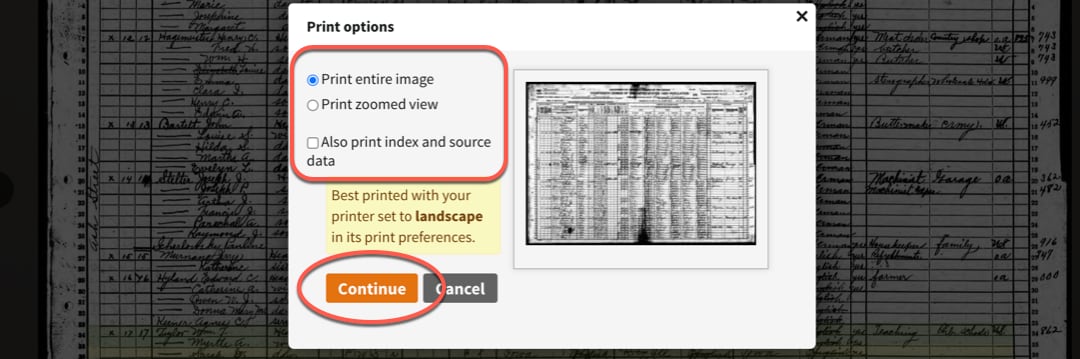
- In the menu that appears, choose whether to print the whole page or the zoomed view and whether to print the index and source data. Click Continue.
- Click Print or OK to print.
Turning on tips and enhancements
On the record image, click tools and expand the Settings section to turn labels, tips, and image enhancements on or off.
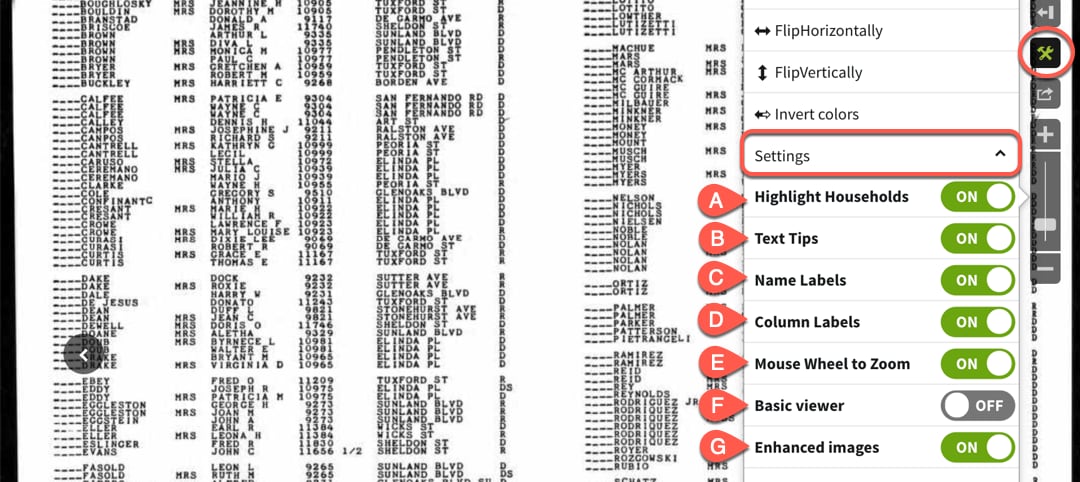
- Highlight a whole household at once on the document.
- Allow the document to show a transcription of the text in a cell when you hover over it.
- When you zoom in on an image, allow name labels to appear along the left side of the record.
- When you zoom in on an image, allow column headings to appear along the top of the record.
- Use your mouse wheel to zoom in and out of the record image.
- Use basic mode when on a slow internet connection to increase image quality.
- Allow images to automatically adjust the image’s lightness and darkness.
Troubleshooting
Message offering a membership: In order to view records, you need a membership. If you see a message offering you a membership, the account you're signed into either doesn't have a membership, or doesn't have the type of membership that includes that record. In that case, you need to
subscribe or
upgrade your membership. If this is happening, but you have a membership, try
signing out of that account and signing in to your account.
Error message when viewing record image:
Clear your cache and cookies, then try viewing the record again.


