You’ve got a DNA kit. What's next? We need to know where to deliver your results. That's where registering your kit comes in. This step links your kit to your Ancestry account. You can register your kit before (recommended) or after you mail your sample.
Each adult taking the test needs their own account. Only one DNA kit can be registered per account, except for tests for minor children. You can also invite someone else to register their kit or register your minor child's kit.
Registering a kit
- To start the registration process, choose one of these three options:
- Select the Register a kit button below,
- Go to ancestry.co.uk/dna/register, or
- Scan the QR code in the kit instructions using your mobile device's camera.
- If the Ancestry app isn't installed, the code opens your device's app store to install it.
- If the Ancestry app is already installed, the code opens the registration flow.
Register a kit
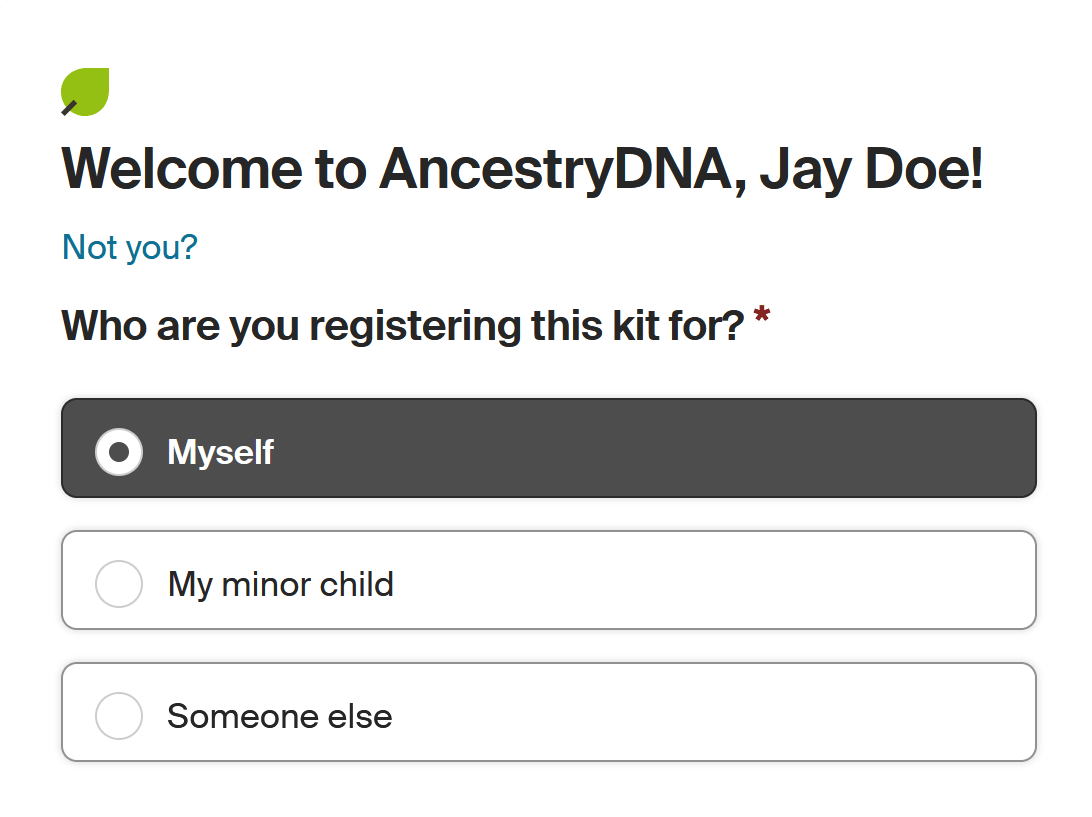
- Choose who you’re registering this kit for: myself, my minor child, or someone else.
If “myself” is grayed out, you’ve already registered a kit for yourself on this account.
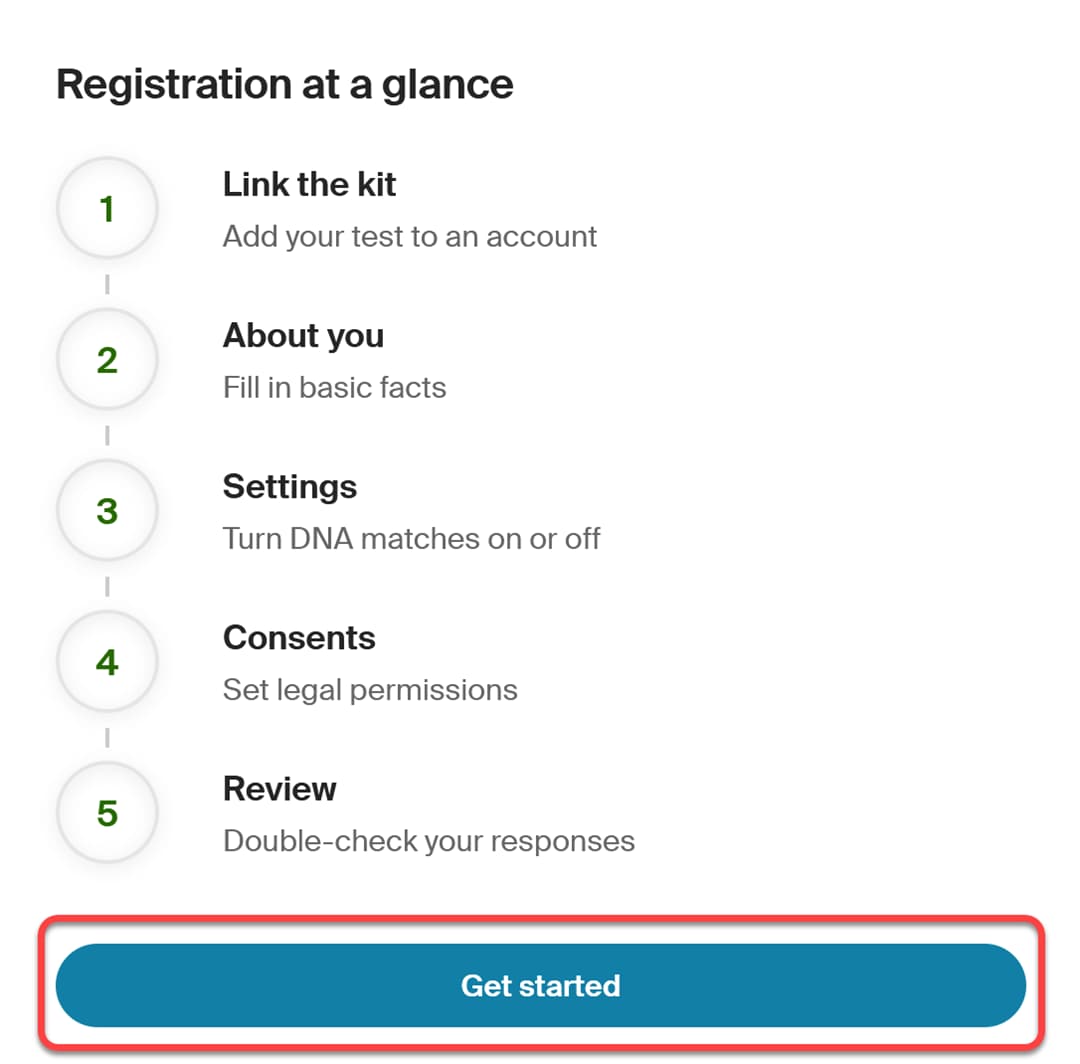
- Select Get started.
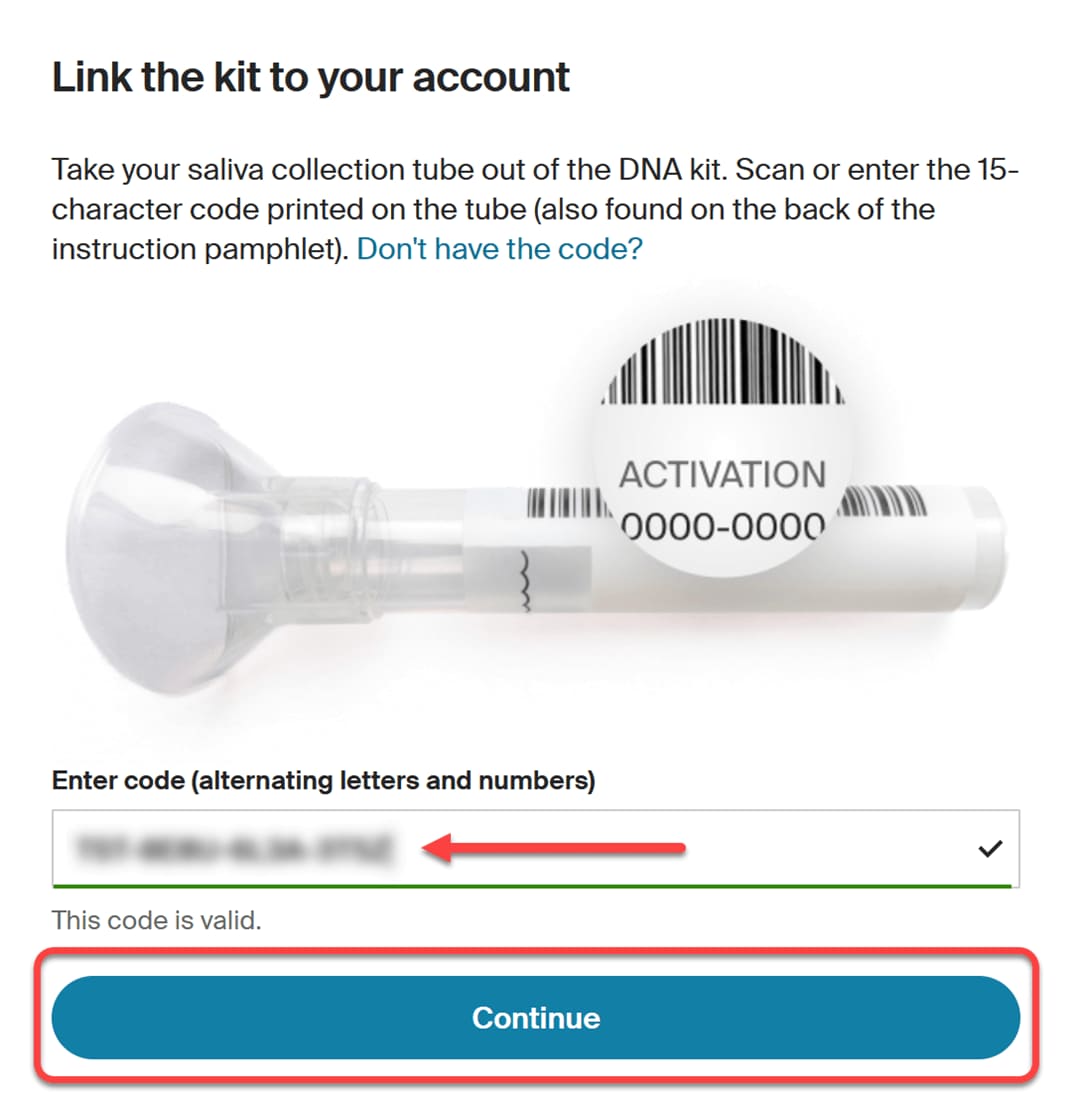
- Scan or enter the 15-character code (alternating letters and numbers) from the saliva tube or instruction booklet and select Continue to link the kit to your account.
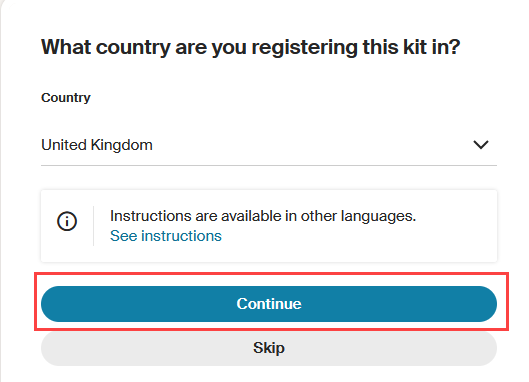
- Select your country and choose Continue.
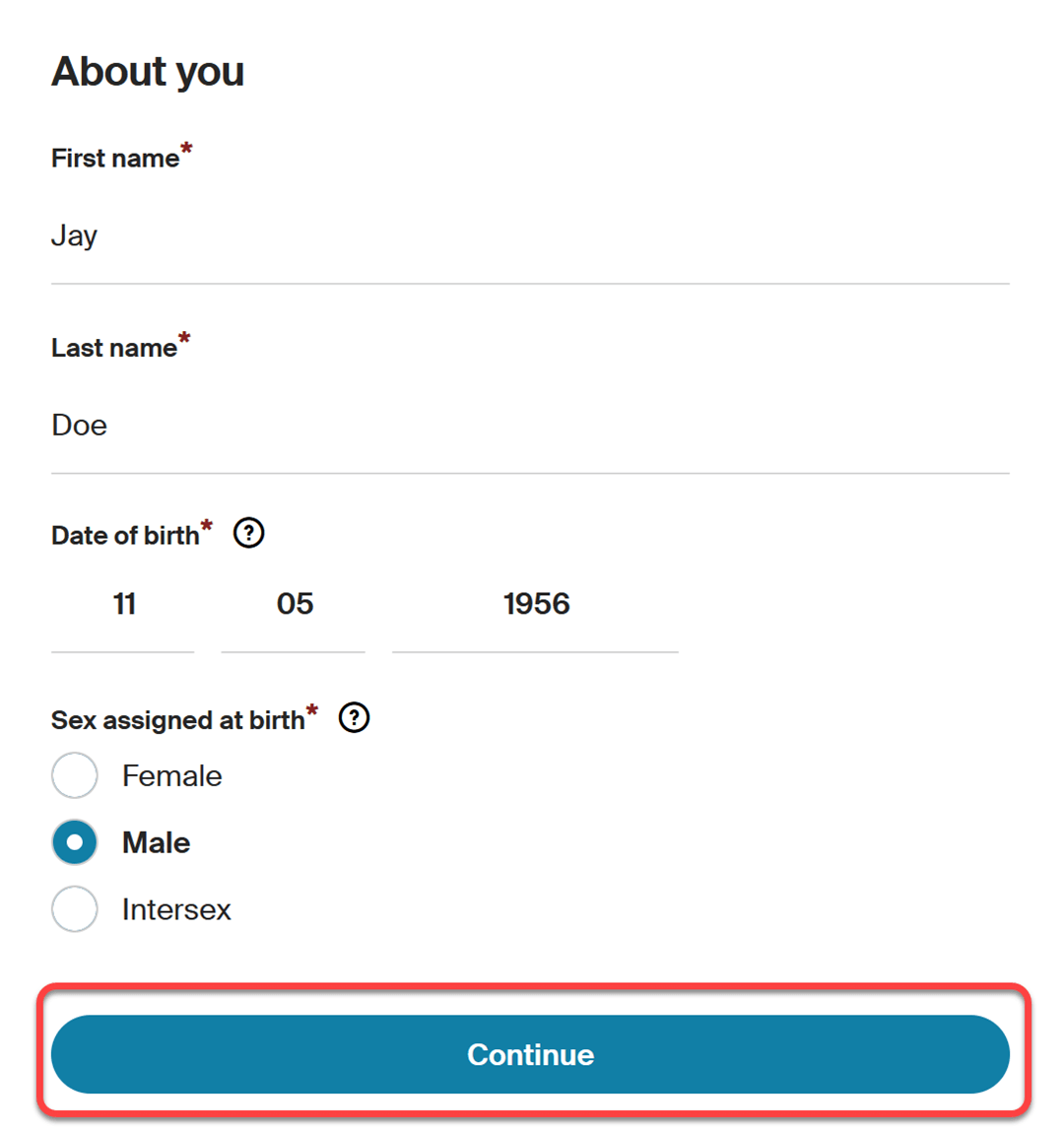
- Enter your name, birthdate, and sex assigned at birth, and then select Continue.
Your birthdate and assigned sex at birth are only used for matching and quality checks and won’t be shown to others. You can change these settings anytime.
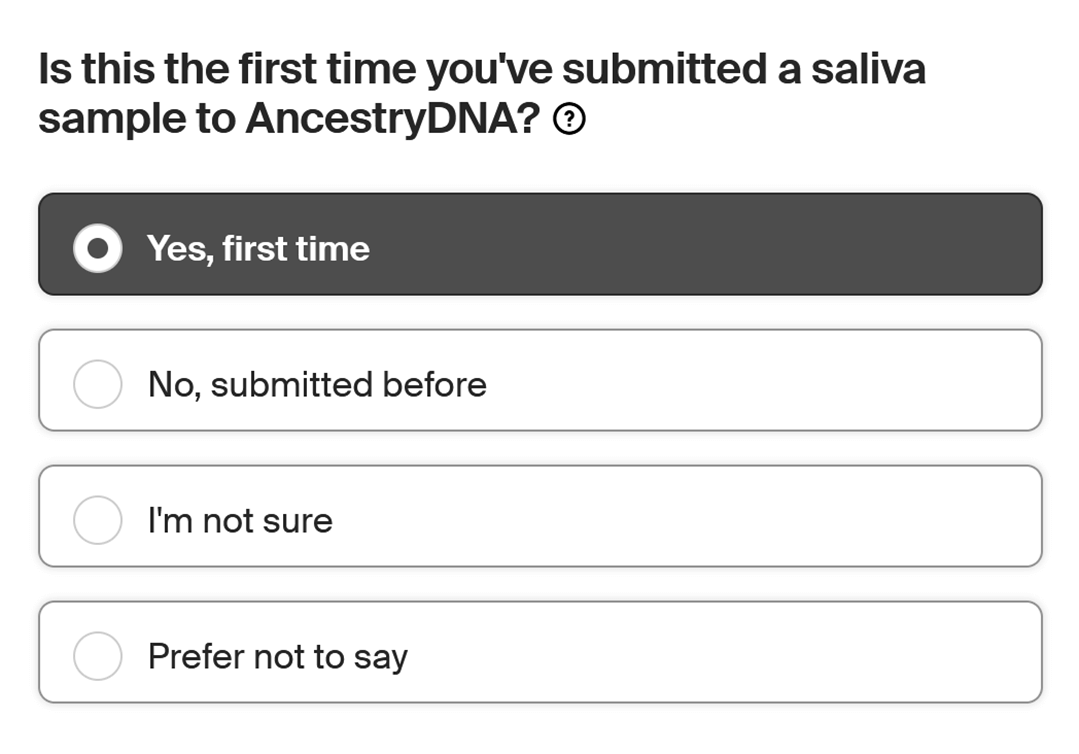
- Let us know if you’ve sent a saliva sample to AncestryDNA before.
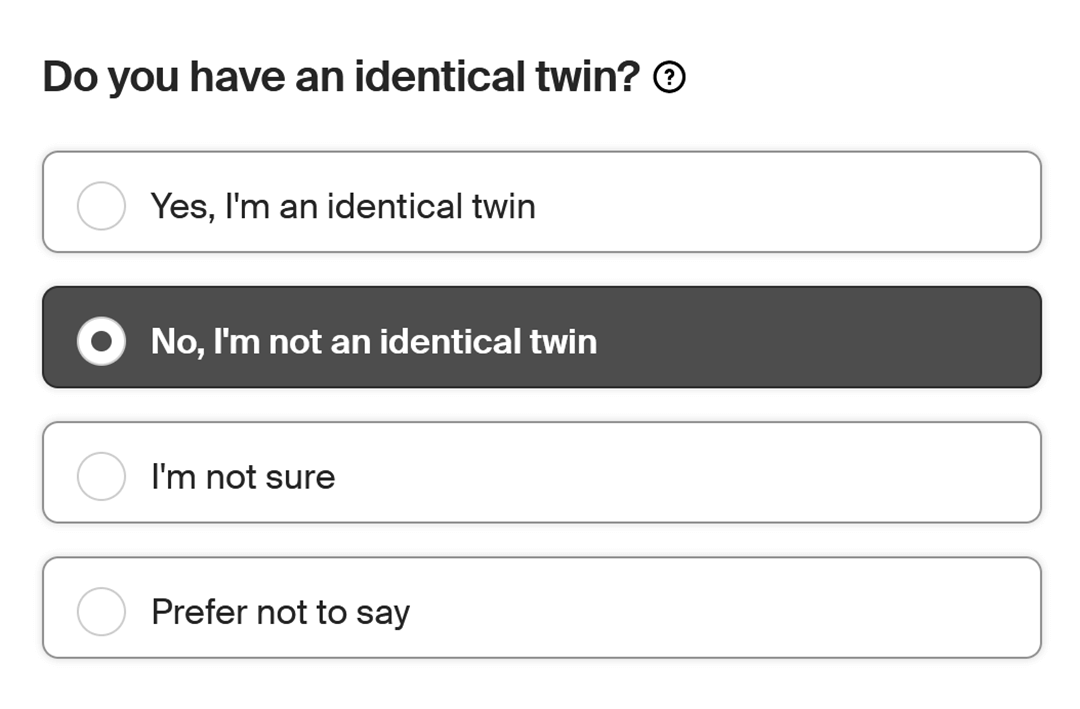
- Let us know if you have an identical twin or not.
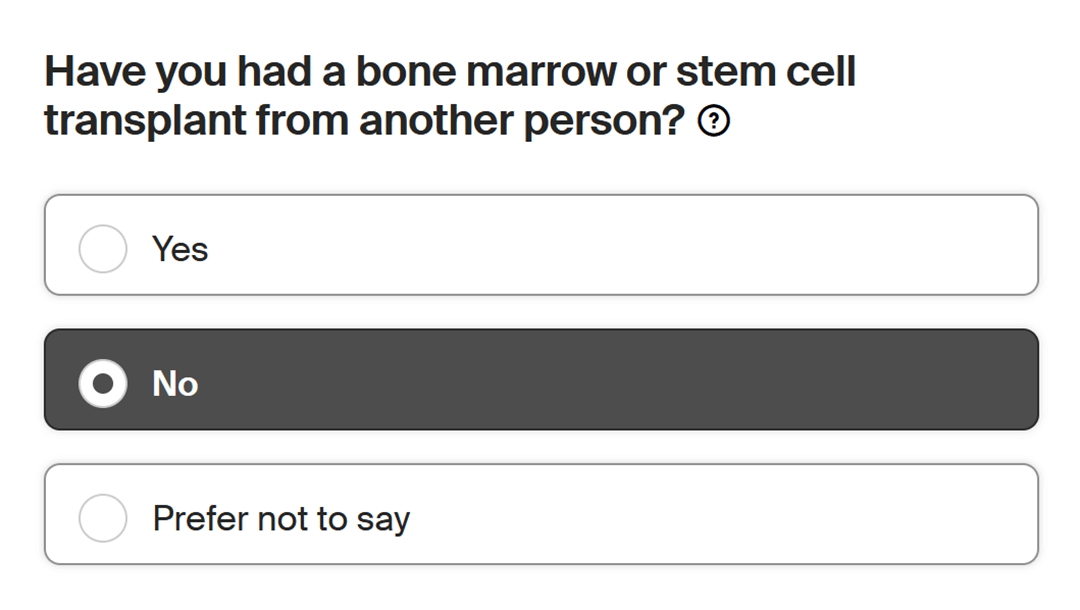
- Let us know if you’ve ever received a bone marrow or stem cell transplant from another person.
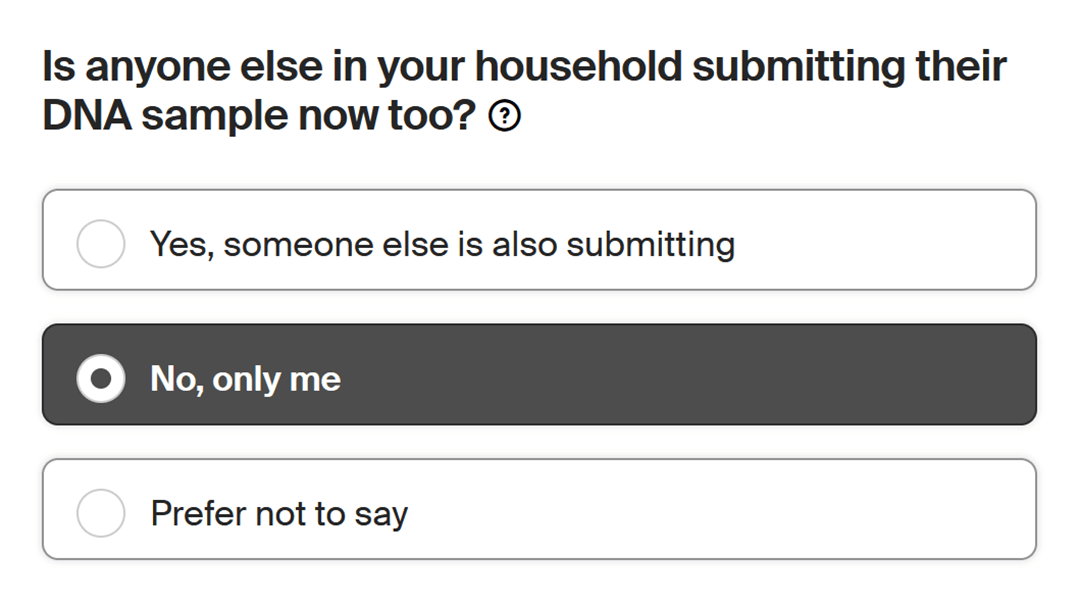
- Let us know if anyone else is submitting their sample now, too.
If anyone else is registering or submitting their saliva sample now, write their name on the instruction booklet with the code matching their saliva tube.
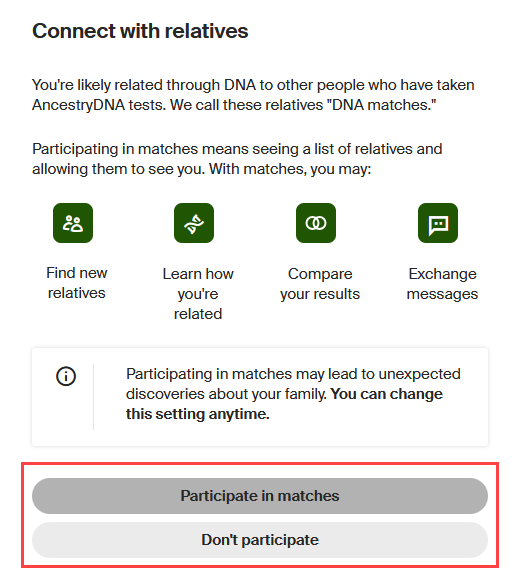
- Choose if you want to see and be seen by your DNA matches. To connect with them, choose Participate in matches. Otherwise, choose Don’t participate. You can change this setting anytime.
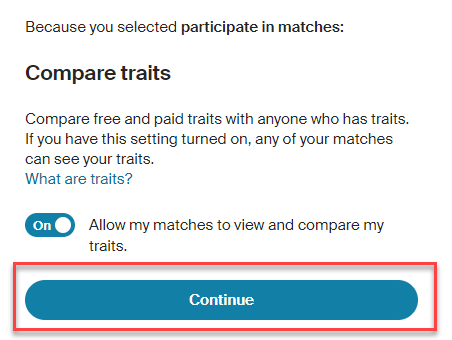
- If asked, choose whether or not to let your matches view and compare your traits. Toggle the switch:
- On to allow trait comparisons.
- Off to prevent trait comparisons and keep your traits private.
You can change this setting anytime.
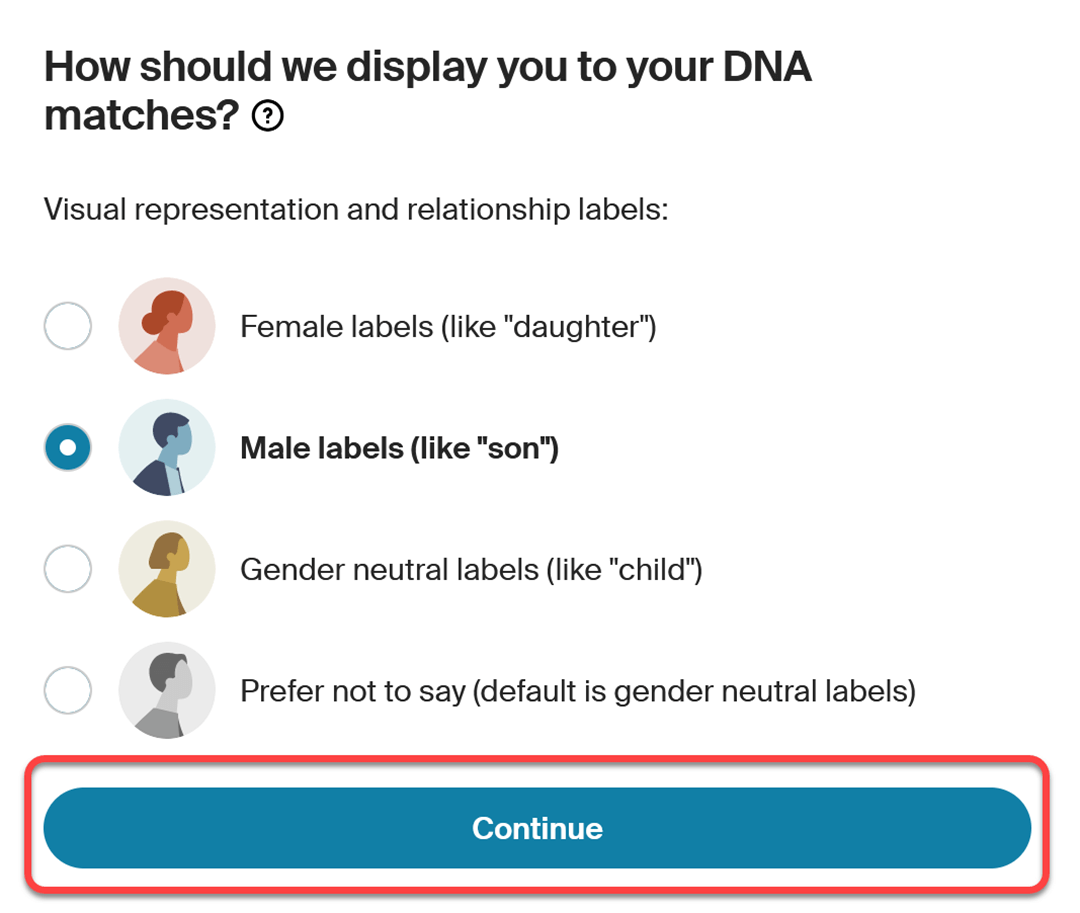
- If asked, choose how we should display you to your DNA matches and then select Continue. Your choice will set how you appear to others and the relationship terms we use for you. You can change this setting anytime.
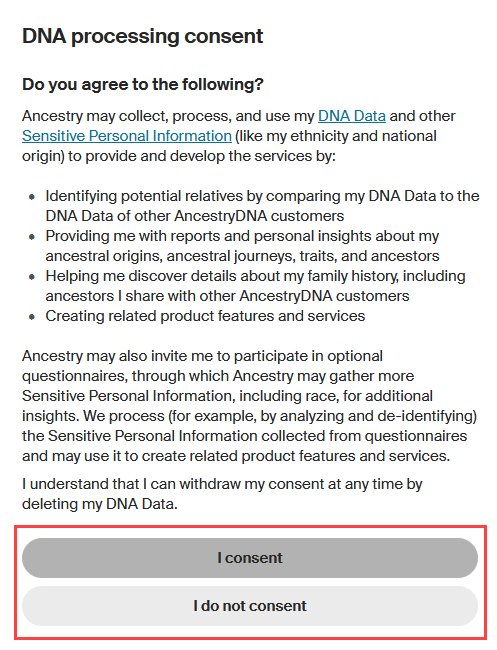
- Read the DNA Processing Consent, then choose I consent or I do not consent. If you do not consent, you cannot register the kit.
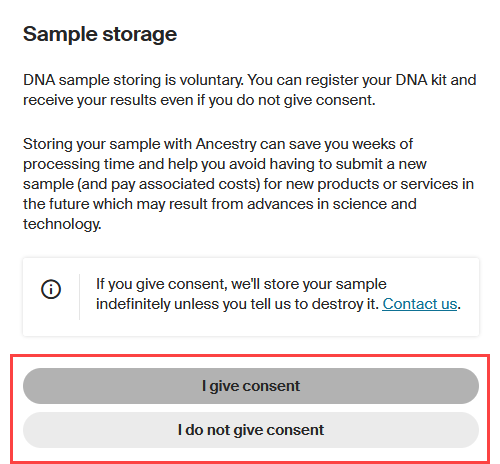
- Read the information about Sample storage. If you want Ancestry to store your sample, choose I give consent. If not, choose I do not give consent. Your choice won’t affect your DNA results.
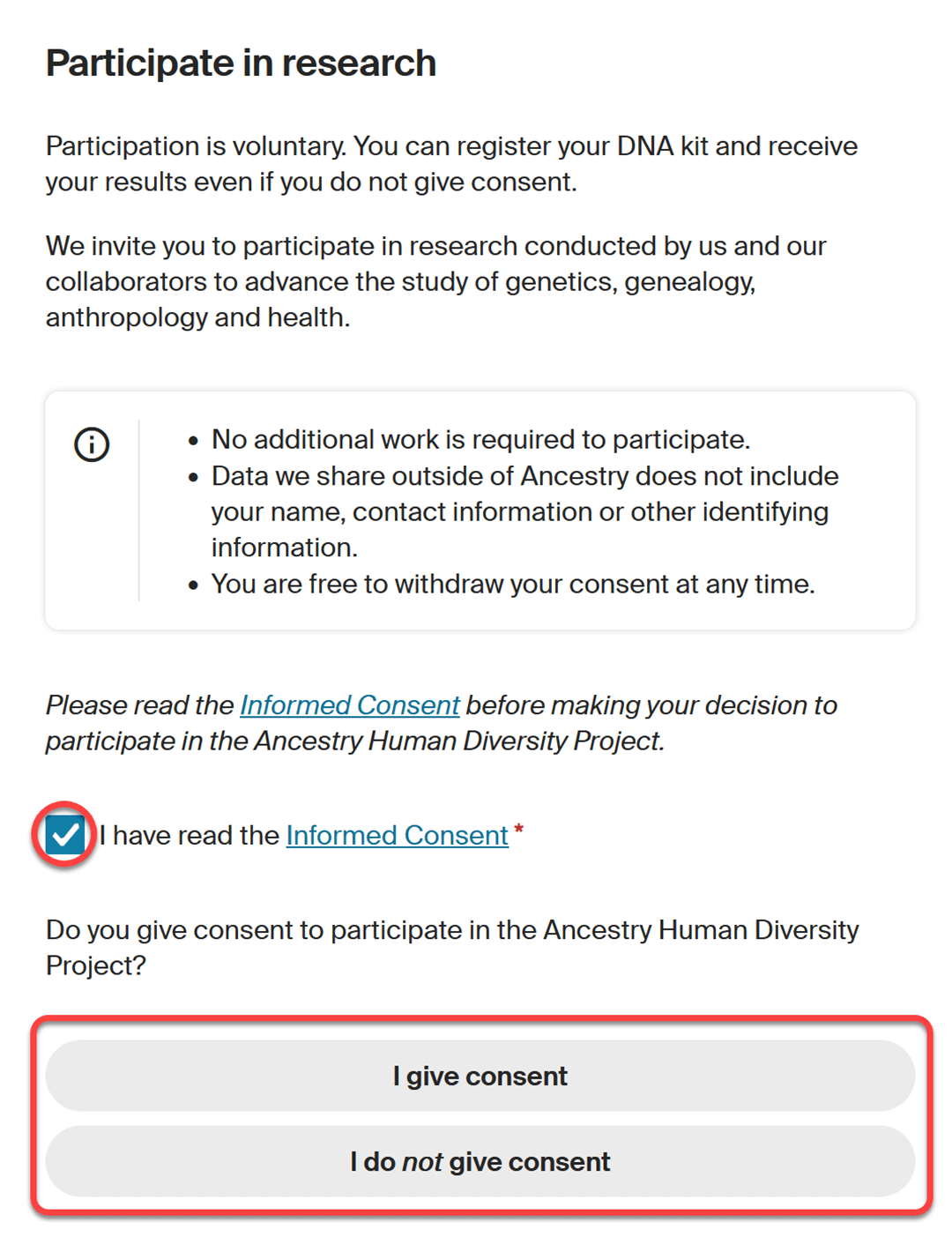
- Read the Informed Consent, select I have read the Informed Consent, and then choose I give consent, or I do not give consent. Your choice won’t affect your DNA results.
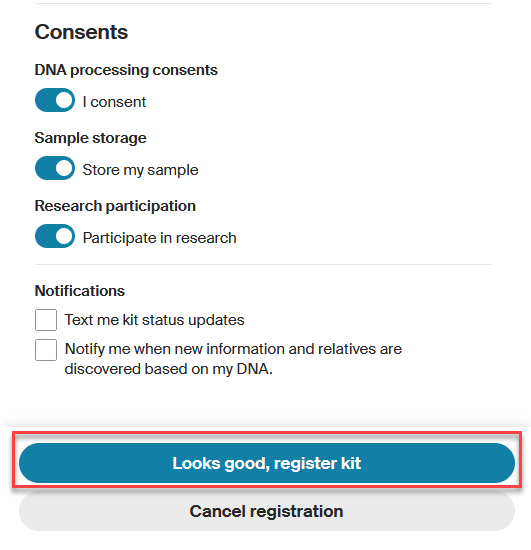
- In the Review section, check the information you’ve entered and make any necessary changes. Verify your consents, choose your notifications, then select Looks good, register kit.
- To receive text updates about your DNA kit status (U.S. only), select Text me kit status updates. Message and data rates may apply. You can stop these messages at any time by replying STOP.
- To receive emails about new DNA information and relatives, check the box next to Notify me when new information and relatives are discovered based on my DNA.
- Check the status of your DNA kit anytime by clicking the DNA tab at the top of any Ancestry page and selecting Your DNA Results Summary.
What’s next
If you haven’t already, collect your saliva sample and send it in. When we receive your sample, we’ll send you an email. This email may arrive up to 5 weeks after mailing your sample.
In most cases, you can expect your results within 6 weeks of the date we receive your sample.
Troubleshooting
Lost registration code
A registration code is a 15 digit series of alternating letters and numbers printed both on the side of your collection tube and your instruction booklet. If your code is permanently gone and your kit isn’t registered, we’ll need to send you another kit, even if you mailed your sample. Contact us to request a replacement kit.
Registration code doesn’t work
If your code is more or less than 15 characters long, check which company your DNA test is from. Registration codes from AncestryDNA have alternating letters and numbers; if you’ve entered three letters or three numbers in a row, check the middle character. Make sure you don’t have the number “5” entered as the letter “S,” for example.
Blue solution doesn't release into the container
Carefully loosen the cap, then twist it on again tightly. Repeat until the blue solution is released. If the blue solution spills out of the container completely, contact us to request a replacement kit.
Lost plastic bag
Place the tube in a Ziploc-type bag and place the bag in the return box.
No email address or email address is already connected to an Ancestry account
If you don’t have an email address, or if you share an email address already associated with an account, you’ll need to make a new one to create a free Ancestry account and register your kit.
Contact us
How can we help?
For other registration problems, see DNA Registration Troubleshooting. For help collecting your sample, see Collecting a Saliva Sample.


