Ancestry Hints can help you find more ancestors and fill in details about family members already in your tree. They often include basic information from some of our most-viewed records, like:
- Census records
- Birth, marriage, and death records
- Public family trees
If a hint is attached to the wrong person, check out Hints for the Wrong Person. For hints about possible parents for people in your tree, see Potential Mother and Father Hints. To learn how hints are updated, see How Ancestry Hints are Updated.
Where to find hints
From a browser
For one person:
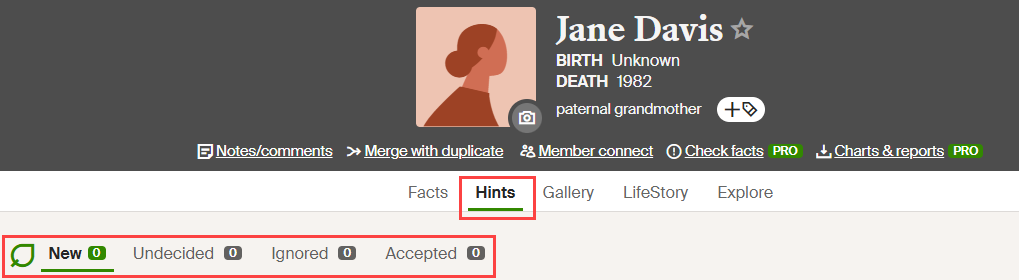
Hints in your tree appear as leaves  or as a potential mother or father.
- In your tree, click on someone with a leaf hint.
- In the opened card, click Hints.
For a whole tree:
When you have new hints for a family tree, a red dot will appear next to the leaf-shaped hint icon  in the navigation bar.
- In the top-right corner of Ancestry, click the leaf-shaped hint icon.
- At the bottom of the drop-down menu, click See all recent hints in and choose a Family Tree.
Or
- From a tree, in the toolbar on the left, click the leaf-shaped hint icon.
From the app
Important: Some hints, like those from public member trees, are only available on the Ancestry website and are not available in the app. Use a browser to view all hints.
For one person:
- Open a tree and tap someone with a leaf hint.
- Tap View Profile.
- Tap the leaf-shaped hint icon.
For a whole tree:
- In the bottom left corner of your screen, tap Discover.
- In the top-right, tap the leaf-shaped hint icon to see all hints for your tree. To view hints for another tree, see Switching Between Trees in the Ancestry App.
Viewing hints
When you sign up with Ancestry, you get a free registered guest account with access to free records. To view hints beyond our free collections, a family history membership is required. Different memberships provide different levels of access to the records on Ancestry.
From a browser
-
Click on a person in your tree whose hints you want to view.
-
In the card that appears, click Hints.
-
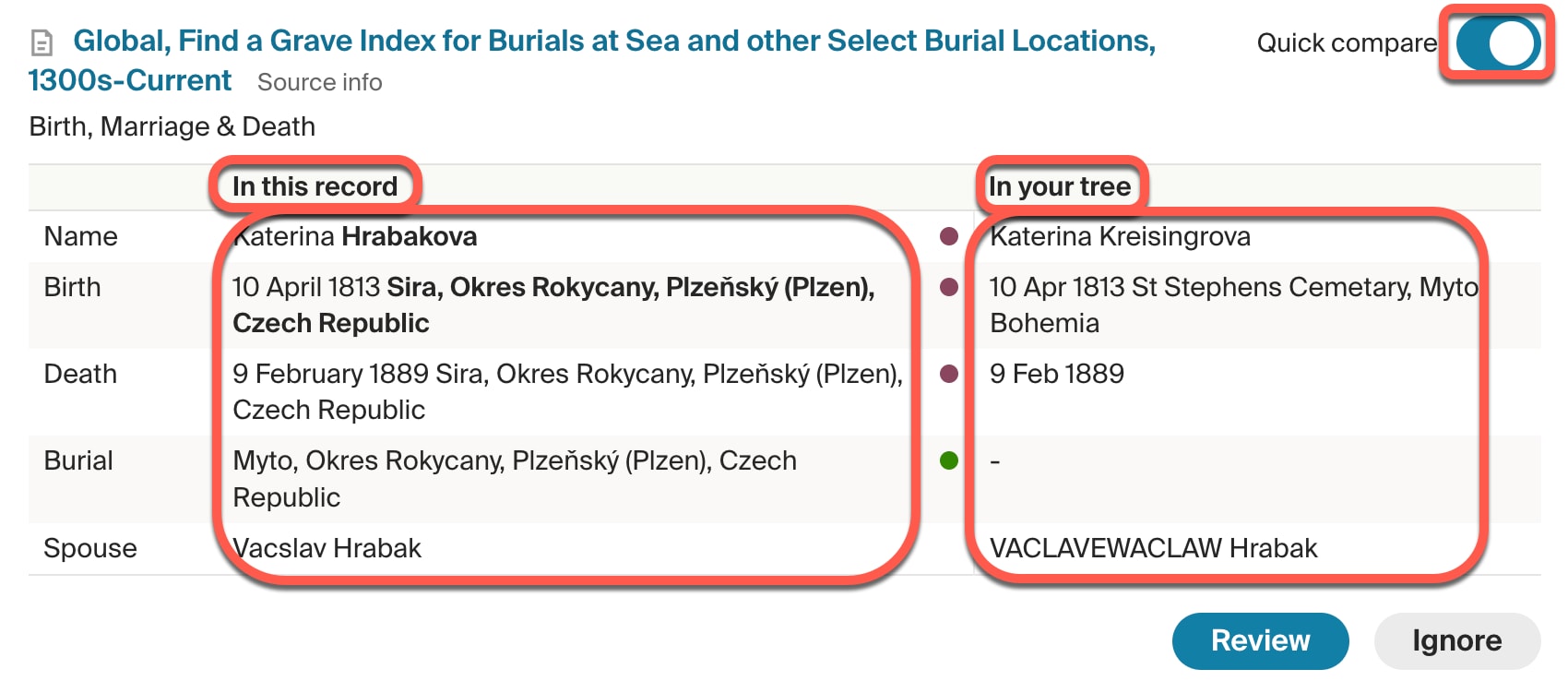
To compare the information in the hint to the information in your tree, click Quick Compare on a hint. This will show the information listed side by side.
-
To see more details about a hint, or to accept the hint, click Review
-
In the panel that appears on the right, click Compare details if you want to compare the information in the record to the information in your tree again. To expand the panel, click the left-facing arrow on the left side of the panel.
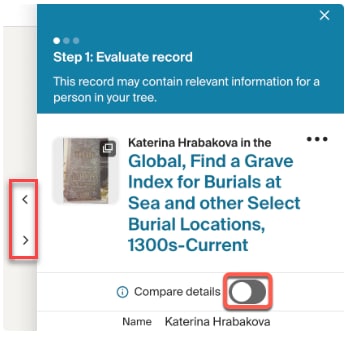
This panel will stay open even if you click on another tab in the person's profile, so you can compare information to the information in their profile. To collapse the panel, click the right-facing arrow.
-
At the bottom of the side panel, click Yes to accept the hint (and add the information in it to your tree), No to reject it (if the record does not seem to be for the person in your tree), or Maybe to save the hint for later.

-
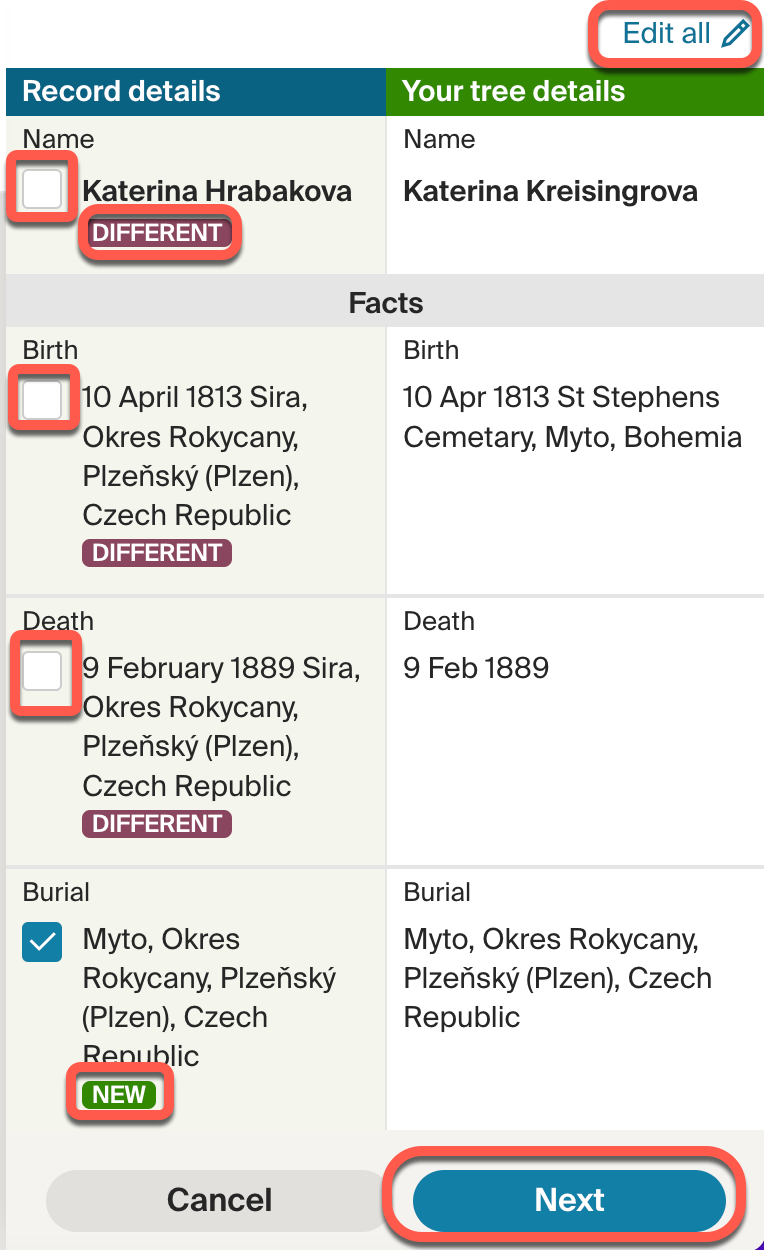
If you click Yes to accept a hint, you'll see the facts in the record in the left column, and the facts in your tree in the right column. If a fact in a record differs from a fact in your tree, you'll see  under the fact. You'll see
  under the fact if the record has information that's not in your tree. To change the information in your tree, click on any fact and edit it, or click Edit all to make all facts editable.
-
At the bottom of the panel, click Next.
-
To add people listed in the record to your tree, check the box next to their names. The people who aren't already in your tree will say next to them. When you check a new person, both columns will show the same information (because all the information from the record is being added to the person in your tree).
-
If you select someone who's already in your tree, you'll see the facts from the record on the left, and the facts in your tree on the right. To change a fact in your tree to match the information in the record, check the box beside a fact.

-
Once you've gone through everyone on the page, click Save to tree at the bottom of the panel. The people and facts you added and changed will now be in your tree. 
From the app
- Tap someone in your tree with hints and choose View Profile.
- Tap the leaf-shaped hints icon.
- Tap a hint to examine it.
- Compare the new information on the left to the information in your tree on the right. To add the information to your tree, tap Yes.
- If prompted, select others in your tree to add the new information to. Choosing someone with a "New" tag by their name will add that person to your tree as a new person. (Tap Details (iOS) or
 (Android) to compare the information for that person and select or deselect each fact. Tap Save Record (iOS).)
 - Tap Save.
Finding undecided or ignored hints
When you click or tap Maybe for a hint, it moves to the Undecided tab. When you click or tap Ignore or No for a hint, it moves to the Ignored tab.
From a browser
- Click on someone in your tree and select Hints.
- Under the Hints tab, you'll see New, Undecided, Ignored, and Accepted. Select on the type of hint you'd like to view.
From the Ancestry app on your phone or tablet
- Tap someone in your tree > tap View Profile > tap leaf-shaped hints icon.
- iOS: At the bottom of your screen, tap New, Undecided, Ignored, or Accepted. Android: At the top of your screen, tap New Hints and select Undecided Hints, Ignored Hints, or Accepted Hints.
- Tap a hint to view the details. Tap Yes and follow the on-screen steps to add “ignored” or “undecided” hints to your tree.
Turning some hints on or off
To help with your family history research, we automatically compare your tree against popular records, photos, and other members’ trees. If we find a possible match, we send you a hint.
While you can’t turn off all hints, you can stop receiving hints from other members’ trees and hints about potential relatives.
- In the top-right corner of Ancestry, click your Profile and select Account Settings.
- On the left, click Trees.
- Scroll to the bottom, and under Hint Notifications, click the type of hint you'd like to change.
- Member tree hints are hints from trees submitted by other Ancestry members.
- Potential relatives not yet in your tree are hints about people who may belong in your tree.
- Toggle the switch to turn those hints "On" or "Off.”
- Click Save.
Remaining hints can be ignored or dismissed individually by clicking “Undecided,” “Ignore,” “No,” or “Reject.”
Choosing which trees you receive new hint notifications from
When you receive new hints, a red dot appears on the hint icon (shaped like a leaf) in the navigation bar at the top of the page. You can choose which of your trees sends you these notifications, but only for trees you created and own.
- In the top-right corner of Ancestry, click your Profile and select Account Settings.
- On the left, click Trees.
- Scroll to the bottom, and under Hint Notifications, click New hint indicator at top of page.
- Choose the trees from which you want to see new hint notifications by checking and unchecking boxes.
- Click Save.
To manage the email and push notifications you receive from Ancestry about hints, see Subscribing to and Unsubscribing from Emails and Push Notifications.
Saving hints as alternate facts
Sometimes, information in a record or another tree conflicts with a fact in your tree. When you add something to your tree with conflicting information, you can decide which fact to keep—the new one, or the one you had. You could also keep both, making one of the facts primary and saving the other as alternate information. To learn about saving alternate facts, see Alternate Information in Family Trees.
Unavailable hints
A hint becomes unavailable when its source is removed from Ancestry or made private. When you try to view a pending hint from a source that’s been deleted or made private, the hint will say, “This hint is no longer available.” Hints that fall into this category will eventually be deleted but can cause confusion in the meantime. We're working to reduce the time it takes to remove these hints after the source is deleted or made private. For more information about unavailable hints, see our article about unavailable hints.
Frequently asked questions
Will I keep getting new hints?
Yes, new hints will continue to appear as we add more content or you update your family tree. Learn more about How Ancestry Hints are Updated.
Can I turn off or opt out of all Ancestry Hints?
No. It’s not possible to turn off or opt out of all Ancestry Hints at this time.
How do I hide or remove all Ancestry Hints?
You can’t hide or remove all Ancestry Hints at once, but you can ignore or dismiss them individually by clicking “Undecided,” “Ignore,” “Reject,” or “No.”
How do I turn off email and push notifications about Ancestry Hints?
To manage the email and push notifications you receive from Ancestry about hints, see Subscribing to and Unsubscribing from Emails and Push Notifications.