If you need help signing in to your Ancestry® account, try signing in with your email address instead of your username or resetting your password.
Changing your username
Go to account settings
- Select your Username.
- Enter a new username and click Update username. If you receive an error message, try another username.
Usernames must:
- not be in use
- be between 5 and 24 characters
- only contain alphanumeric characters (A-Z, 0-9), hyphens (-), underscores (_), and periods (.)
- not have other special characters or symbols (for example: %, #, @)
- If prompted, verify your account by selecting Send code via email or Enter current password.
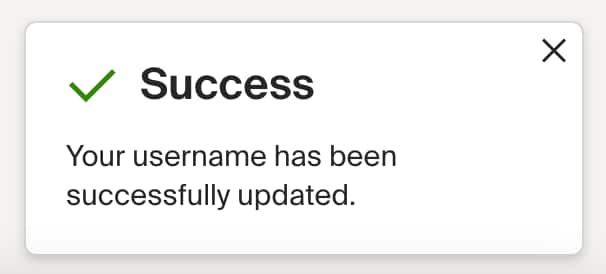
- Success! Your username has been updated.
Related issues


