At Ancestry®, privacy is a top priority. When you create a family tree, you control who can see it by choosing if it’s public or private. In this article, we’ll explain the difference between public and private family trees and how to change your tree’s privacy settings.
Public family trees
Public family trees are visible to anyone with an Ancestry membership and those you invite.
When your tree is public, all the details you’ve added are searchable and viewable, except for information about living people.
Details about living people are kept private, even in public family trees. (Read Living People in Family Trees to learn more.)
How public trees look to others
When someone views a public tree, they can see full details about deceased people (including names, dates, and places). They can also view and save facts, photos, and sources from that tree to their tree.
Living people are shown as “Private” and “Living,” along with their gender.

Example: A public family tree with 3 living people and 1 deceased person.
Why make your tree public?
Making your tree public benefits you and the Ancestry community.
- Public trees are easier for others to find.
- Sharing your tree can help others researching the same family lines discover information about shared relatives.
- When others find your tree, they may message you to collaborate, which can help you in return.
Private family trees
Private family trees are only visible to you (the tree owner) and those you invite.
However, depending on your settings, others may see limited details in search results and hints, letting them know your tree exists.
There are two types of private family trees:
- Searchable private trees:
- Show up in search results and hints.
- Share only basic details, like the number of people and names of the deceased.
- Others can see you have a tree and can message you to ask questions or request access.
- Unsearchable private trees:
- Don’t show up in search results or hints.
- No details are shared.
- Others won't see it unless you share it with them.
How private trees look to others
What others see when searching or viewing hints depends on whether your private tree is searchable or unsearchable.
Searchable
If your private tree is searchable, others will see basic details, like the number of people and names of the deceased. But, if they try to view your private tree without an invitation, they’ll see a message saying the tree is private, with an option to message you.
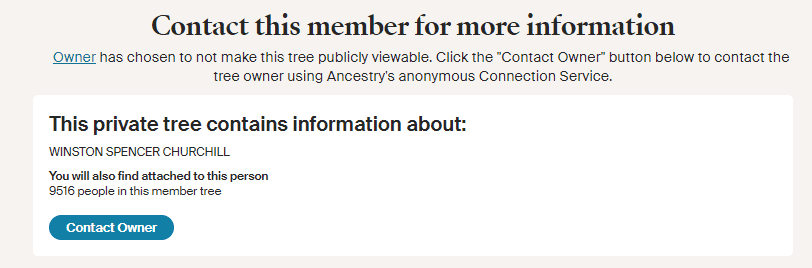
Example: What someone without access sees when trying to view a searchable private tree.
Unsearchable
If your private tree is unsearchable, it won’t appear in search results or hints, and others won’t know it exists unless it’s shared directly with them.
Why make your tree private?
Making your tree private gives you control over who sees it and what details are shared.
- Private trees keep sensitive or incomplete information hidden.
- They prevent others from seeing or copying your tree’s details.
- You can decide when and with whom to share your tree, either by invitation or by making it public later.
Changing your tree’s privacy settings
From a browser
- Go to your family tree.
- In the tree toolbar on the left, click More (three dots) and select Tree Settings.
- Click the Privacy Settings tab.
- Choose Public Tree or Private Tree. For a private tree, decide if it should be searchable or unsearchable:
- Searchable: leave the box unchecked.
- Unsearchable: check the box next to “Also prevent your tree from being found in searches.”
- Click Save Changes.
From the app
- In the top-left corner, tap your profile.
- Under Manage tree, tap your tree’s name.
- To change trees, tap Switch tree and select the gear icon next to the tree you want.
- Under Privacy, choose Public or Private. For a private tree, decide if it should be searchable or unsearchable:
- Searchable: toggle the Show in Search switch on (green).
- Unsearchable: toggle the Show in Search switch off (gray).
- (Android only) Tap Save.
Frequently asked questions
Select a question below to view the answer. Select the question again to hide it.
What’s the difference between a public tree and a private tree?
A public tree is visible to anyone with an Ancestry membership. It shows up in search results and hints, allowing others to find and view your tree.
A private tree, on the other hand, is only visible to you and those you invite. You can choose whether it’s searchable (appearing in hints and search results) or unsearchable (hidden from search results altogether).
What’s the difference between a searchable and unsearchable private tree?
A searchable private tree shows basic details about deceased people, like names, birth years, and birthplaces, in search results and hints. Others can see this information and message you to ask for access, but you decide whether to share your tree with them.
An unsearchable private tree is completely hidden from search results and hints; others won't see it unless you share it with them.
Who can edit my tree?
Only you (the tree owner) can edit your tree unless you invite others as editors or contributors. While your tree is public, others can view and save information from it, but they can't change it without your invitation.
How do I share details about living people in my tree with someone?
To share details about living people in your tree with someone, invite them to your tree and grant them permission to see living people. For help, read Sharing a Family Tree.
Why would I want to make my tree public or private?
Making your tree public benefits you and the ancestry community by increasing its visibility and helping you connect with other researchers.
Having a private tree gives you control over who can see your tree's details and keeps sensitive information hidden.
How long will it take for changes to my tree's privacy settings to take effect?
Changes to your tree's privacy settings take effect immediately, but the change may take about a month to be reflected in the search index.
What happens to files saved from my tree to other trees when I make my tree private?
Files that were saved from your tree to other trees while it was public will remain visible in those trees, even after you make your tree private.
How can I see who's viewed my public tree and collaborate with them?
With our tree collaboration tools, you can see who’s viewed your tree in the past 7 days.
If you'd like to connect with someone who’s viewed your tree:
- Send them a message to introduce yourself.
- Tell them why you’re reaching out—you noticed they recently viewed your tree, and you might be researching the same people.
- Offer to help with their research and ask if they can help with yours.


