Other lessons in this series:
To add a person to your tree, you must add them to someone.
For example:
- To add your father, you would add a father to you.
- To add your paternal uncle (your father's brother), you would add a parent to your father (your grandparent) and then add another child (your uncle) to your grandparent.
Adding a relative to someone in your tree
- Go to your tree and click on the person you want to add a relative to.
- In the opened card, click More options
 (the three horizontal dots) and select + Add relative.
 - Choose the type of relationship you want to add.
Note: If you want to add a sibling and don't see the option, add at least one parent first—siblings are connected through their shared parent(s) in a tree. - Enter the new relative's information and click Save.
Adding more than two parents
If someone in your tree has more than two parents, you'll need to add their additional parents in a different way than the steps above.
- Click on the person whose parent you're adding.
- In the opened card, click Profile.
- In the top-right corner of their profile page, click Edit and choose Edit relationships.
- Click Add alternate mother or Add alternate father.
- Click Add new person.
- Enter information about the parent and click Save.
- Check and change the relationship type for each parent listed by clicking the relationship type drop-down menu
 and choosing a different option.
 - The first listed Father and Mother will be displayed in your tree. To change which parents are displayed, click Make preferred under the name of the parent you want to see.
Adding specific relationships
Siblings
Siblings are connected through their shared parent(s)—full siblings through two parents and half-siblings through one parent. To add siblings to your tree, you must have at least one shared parent in your tree.
- Add at least one of the siblings' parents to your tree. If you don't know the parent's name, add them as "Unknown."
- Click on the shared parent of the siblings in your tree.
- In the opened card, click More options (the three horizontal dots), select + Add relative, and choose Child.
- Enter the child/sibling's information and click Save.
For more information, see Siblings, Half Siblings, and Stepsiblings in Family Trees.
Stepfamily
To add a stepparent, add the stepparent as a spouse to the child's parent but uncheck the "Include these individuals as children of this spouse" box.
To add a stepsibling, add the stepparent > add a child to the stepparent, and in the Parents section, select the option that includes Unknown Mother / Father.
For more information, see Siblings, Half Siblings, and Stepsiblings in Family Trees.
Adopted family
You can add an adopted family member the same way you’d add a biological family member. After adding them to the family tree, go to their profile page > click Edit (top-right) > Edit Relationships > and change the necessary relationships from Biological to Adopted.
Unmarried parents
To add unmarried parents, add the parents like you would anyone else. After adding them to the family tree, go to the profile page of one of the parents and click Edit (top-right) > Edit Relationships > and change their relationship from Spouse to Partner, Single, Friend, Other, or Unknown.
An unrelated person
To add an unrelated person to your family tree, add them as any relative of someone already in your tree. After adding them, disconnect all of their relationships. This will keep them in your tree, but they won't be connected to anyone else. To find them later, you can search for their name or look for them in the list of all people in your tree—for help, see Finding People in Your Tree.
Adding people from a hint
Every leaf in your tree is a hint that can lead to discoveries in records, stories, and other family trees. When you accept a hint that includes multiple people, you choose whether or not to add those people to your tree. For help viewing, accepting, and adding people from hints, see Ancestry Hints®.
Adding a potential mother or father
A “Potential” mother or father is a person who may belong in your tree based on information we’ve found in hints like records and other family trees.
- In your tree, click on a Potential relative.
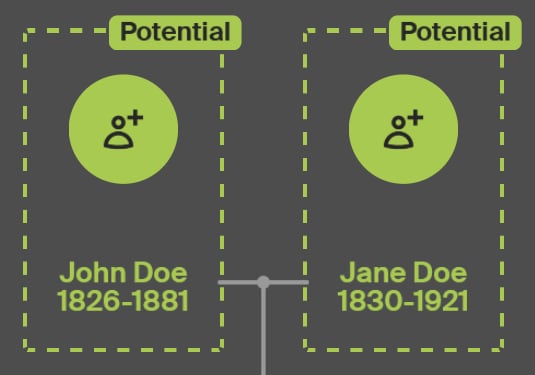
- Click Review Details.
- To see records or photos attached to the potential parent, click Records or Photos. To see family members connected to the person, click Family.
- Choose whether to accept the potential relative.
- Yes adds the person to your tree.
- No deletes the potential relative hint, and you won't see it again. To confirm, click Ignore.
- Maybe leaves the hint as-is.
Adding people from a record
Some records include information about multiple people. For example, census records often include the names and ages of married adults and any children who live with them. When you add a record to your tree that mentions multiple people, you'll have the option to add anyone from the record to your tree.
- To save a record you've found, click Save > Save to someone in your tree.
- Facts from the record you're saving will be on the left, and facts that are already in your tree will be on the right. Check the boxes for any facts you'd like to add or edit.
- Scroll down to see others in the record that you can save to your tree and check the boxes next to people you'd like to add.
- Click Save to your tree.
Copying someone from another tree
You can save people to your tree from other members' trees or another one of your trees. Sources and media files aren't included, but you can add them later once that person is in your tree. Only one person can be copied at a time, and it's not possible to copy living people. To learn how to copy people from a tree, see Copying People from Trees.
Adding facts and events
You can add facts (like address, nationality, and title) and events (like birthdate and marriage dates) to your family tree on Ancestry® from the profile page of a person. To learn how to add facts and events, see Managing Facts and Events.


