Other lessons in this series:
Memberships
After building your tree as much as you can with the information you know, the next step is to purchase a membership and search for records. Without a membership, you have limited access to a number of free records. But with a membership, you gain access to many more records, including census, birth, marriage, death, and immigration records.
With a membership, you can:
-
View records on Ancestry®. We have over 30 billion records from more than 80 countries. Many records contain information that can help you learn more about ancestors and trace your family further back in time. Different memberships provide access to different records.
-
See over 100 million public family trees created by other members of Ancestry. It's often possible to find your own ancestors in other people's family trees, piggybacking on their research.
-
View Ancestry Hints®. As you start your family tree, you'll begin seeing leaves appear on some people. These are hints—records that may mention the people they're attached to.
-
Message anyone on Ancestry. If you want to contact the owner of a certain family tree or other people who may have helpful information, you can do so with a membership.
-
View Common Ancestor Hints, if you've taken an AncestryDNA® test. When an ancestor in your family tree matches a an ancestor in a match's tree, you'll see a Common Ancestor Hint.
-
See surnames and birth locations in your matches’ trees, if you've taken an AncestryDNA test.
How to search
Search using any information
-
From any page on Ancestry, click the Search tab and select All Collections.
-
Click Show more options. If you've ever clicked this previously, you'll see Show fewer options instead.
-
Enter information to search with.
-
To look for records in a certain area, enter a location in the Place your ancestor might have lived field. Under that field, click Exact to country (if you entered only a country) or Exact to and select an option.
-
Click the Collection Focus menu and select a region.
-
When you've entered all the information you want to search with, click Search.
-
If your search results aren't relevant enough, try changing the sliders in the top-left corner or adding more information to your search.
-
On the right two-thirds of the page are your search results. Click on a result to see more information.
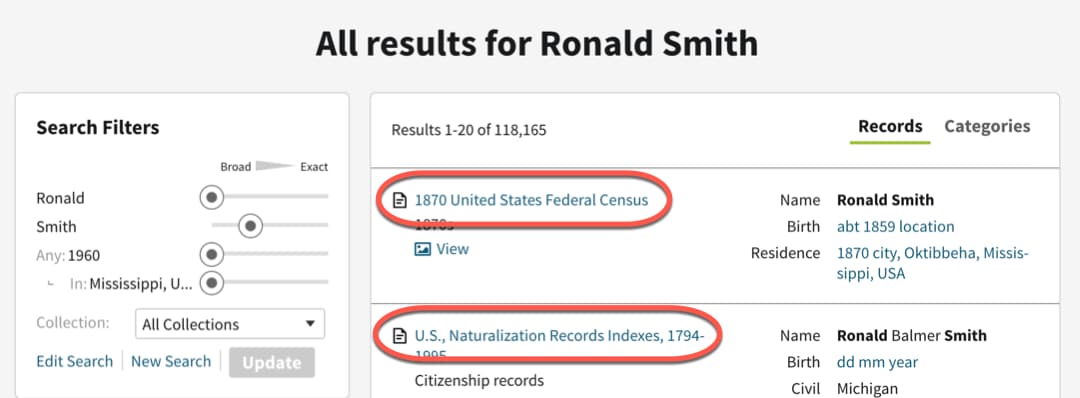
-
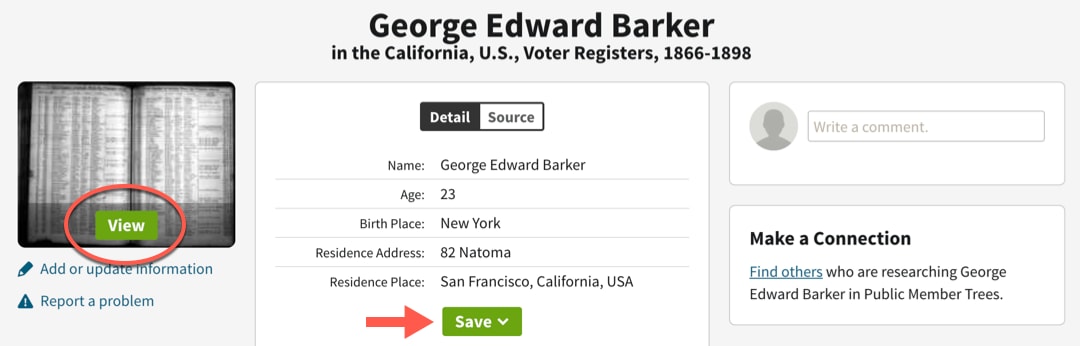
You're looking for clues that will confirm that this record is for the right person (like family members, dates, and locations). To view a photo of the record itself (when available), click View. To save the record to someone in your tree, click Save.
Auto-populate searches from your tree
When you start a search from within your tree, any facts you’ve added about the person you search for will be automatically included in your search.
- From your tree, click on a person and select Search in the card that appears. You can also go to their profile page and click Search in the top-right corner.
- On the search page, enter any other information you want to add and click Search.
Viewing search results by records or categories
Your search results can be organized either by records (showing individual records) or by categories (showing types of records). To alternate between records and categories, click the toggle switch in the top-right corner of your search results.
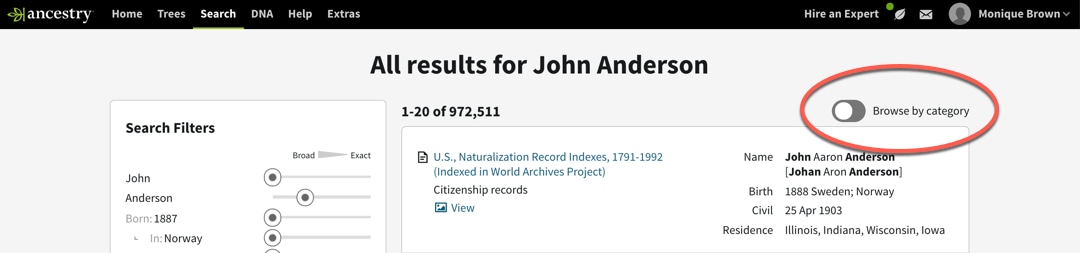
When the results are organized by records, the records that best match your search will be at the top.
Ancestry Hints®
We use information in your tree to find matching records. When you see leaves appear in your tree, or when you see a Potential Mother or Potential Father, you have Ancestry Hints®. Hints include census records, birth, marriage, and death records, and public family trees. You can see hints by clicking on the person with a leaf and then clicking the number of hints, or by clicking on the potential parent.

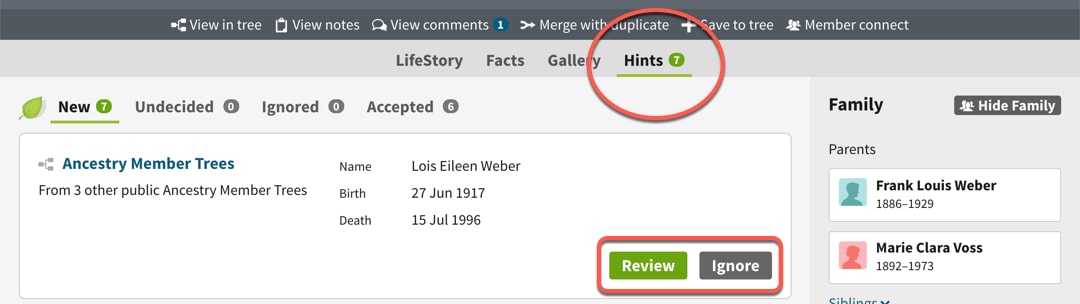
You can also find Ancestry Hints® by clicking the Hints tab on a person's profile page. From the Hints tab, click Review to see the details of that hint. If the hint isn't about the right person, click Ignore.
For more information about hints, see Ancestry Hints®.


