Other lessons in this series:
Improving your search results
If your search results don't seem relevant enough, try adding more information to your search or adjusting the sliders in the top-left corner of your search results. Moving the sliders between "broad" and "exact" can produce different results. For help, see Refining Your Search to Improve Results.
Finding a specific record
When you're looking for a specific record, or for records in a certain area, the Card Catalogue can help.
- From any page on Ancestry®, click the Search tab and select Card Catalogue.
- If you know the name (or part of the name) of a collection you want to search, enter it in the Title field in the top-left corner. Searching by “1911 Census,” for example, will bring up search results that include the 1911 England Census.
- In the Keywords field, enter related words. If you don’t know the collection name, try entering terms likely to be in the title, like “1911,” “Wales,” or “Census.” Entering more than one term in the Keywords field narrows your results.
- Narrow your search results with filters on the left side of the page. To see a list of collections, use Filter By Category. You can use more than one filter at once; if you limit your results to military records, for example, you can also filter by location and date.
- When filtering by location, select a region to see a list of smaller areas within that region. For example, after selecting United Kingdom from Filter By Location, you’ll see a list of smaller locations, and after selecting one of those, you’ll see a list of counties. To filter by date or language, select a decade or language from the lists on the left.
- For more information about searching the Card Catalogue, click here.
Searching by location
- Click the Search tab and select Search All Records.
- From the search page, click Show more options to expand the number of facts you're searching by. If you've already clicked Show more options, you'll see Show fewer options instead.
- Click the Collection Focus menu and select a country or ethnic group.
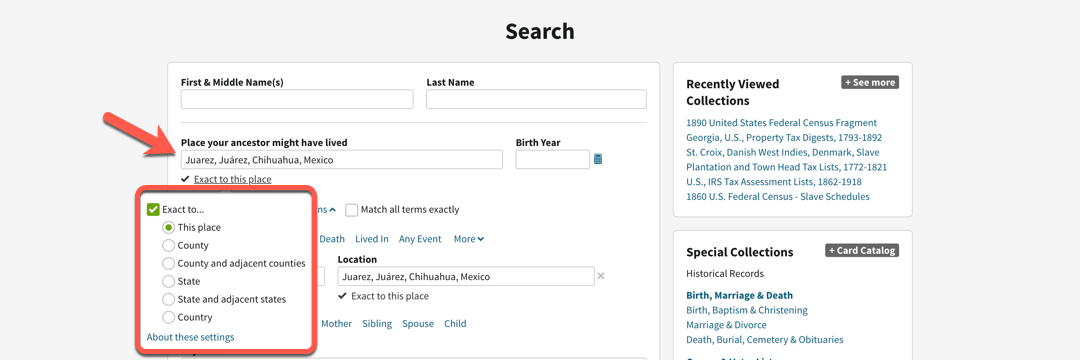
- To limit your search to just one area, enter a location in the Place your ancestor might have lived field. After you begin typing a place name, choose the name from the drop-down menu, if it’s available. Then, check the Exact checkbox beneath the field and select an option.
Searching with spelling variations
Names are indexed as they appeared on original documents, even when the documents contain abbreviations or mistakes. The name James Bruny, for example, may appear in records as Jim, Jas., Jimmy, J, Bruny, Bruney, and so forth.
For these reasons and because name spellings change over time, it's often useful to search for someone using variations of their name.
There are two ways to find spelling variations on Ancestry: searching with Soundex, and searching with wild cards. Soundex is an algorithm you can use to search using only the consonants (except h, w, and y) in someone's name, and wild cards are symbols used in searches to represent unknown letters in a name. To search for both "Nielsen" and "Nielson," you could search "Niels?n." A question mark represents one letter, and an asterisk (*) can represent zero to five letters. Wild cards don't work in combination with Soundex matches.
When searching with wild cards, at least the first or last character must not be a wild card, and all searches containing wild cards must contain at least three non-wild card letters. For example, though searching “*ohnson” and “Johnso*” would work, “*ohnso*” wouldn't; and while “*ill” would work, “*ll” wouldn't.


