If you want a physical copy of your tree, you can print it from the Ancestry website using any printer or order a professionally printed copy through our printing partner, MyCanvas.
Only the part of your tree that’s visible on your screen print. Printing an entire tree at once isn’t currently available, but you can move around your tree and print each section.
You can also print family group sheets, a person's relationship to you. LifeStory or facts page.
Printing from the Ancestry website
You can print your tree from the Ancestry website on a computer, phone, or tablet. Printing trees isn’t currently available in the Ancestry app.
Tree layouts for printing
Before printing, you’ll need to choose a tree layout. There are 3 tree layouts available: horizontal, vertical, and fan. Each layout shows different parts of your tree. For details about each layout and how to switch between them, read Tree Layouts: Horizontal, Vertical, Fan, and Map Views.
Printed trees may look a little different on paper than they do on screen. To help you choose a layout, here are examples of how each one looks when printed.
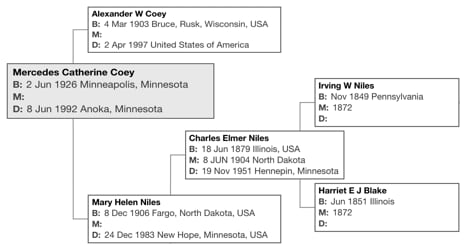
- Horizontal (pedigree)
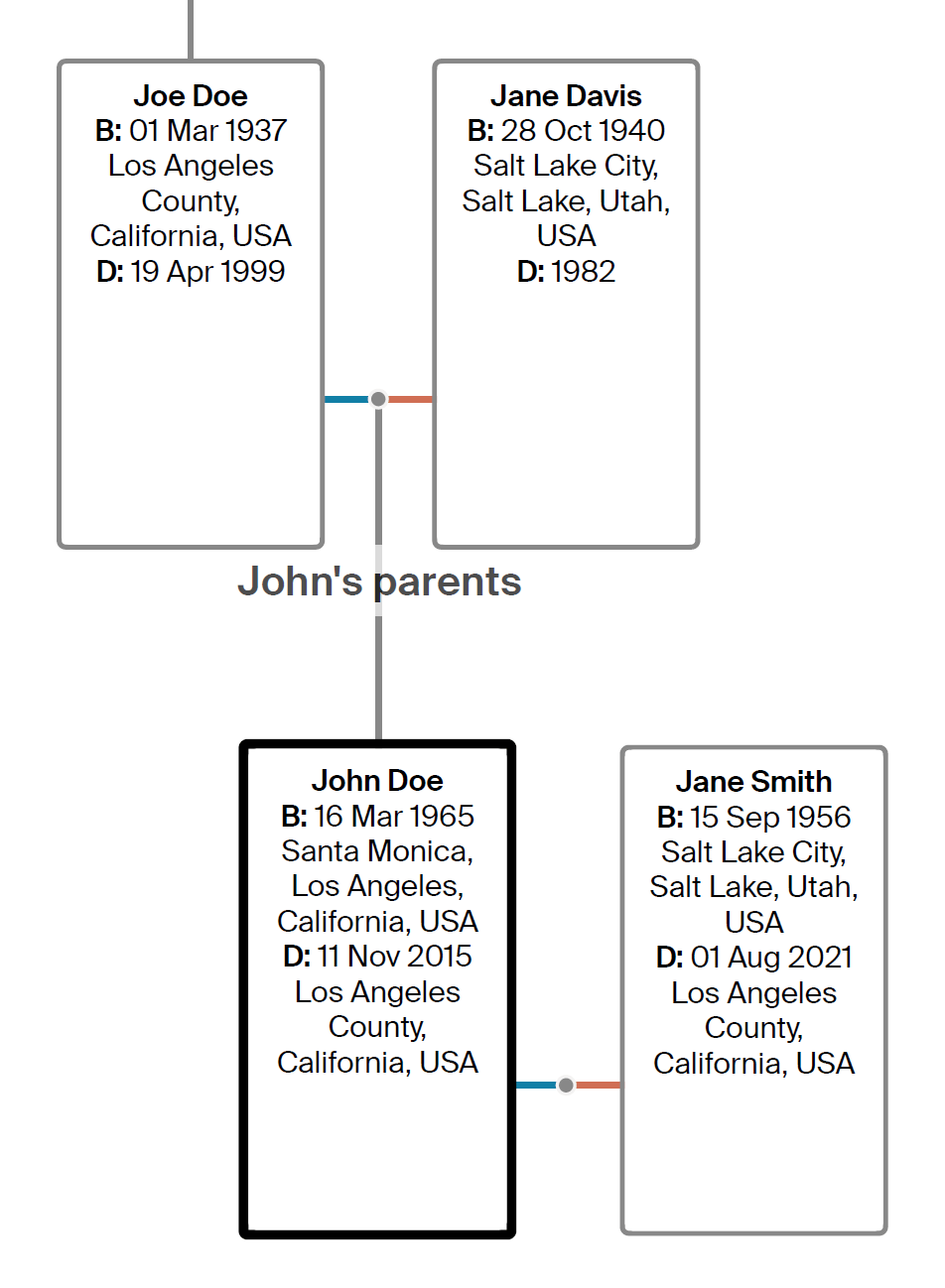
- Vertical (extended family)
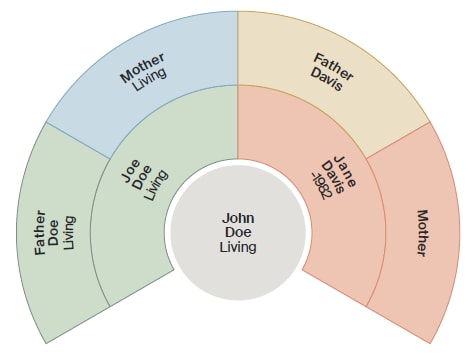
- Fan (generational)
On a computer
- Go to your family tree.
- In the toolbar on the left, click View, then select a layout for printing your tree:
 Horizontal (pedigree)
 Vertical (extended family)
 Fan (generational)
- Go to the part of your tree you want to print.
- In the toolbar on the left, click More (three dots), then select Print.
- Click Print, then confirm by clicking OK or Print.
On a phone or tablet
- Go to your family tree.
- In the bottom left corner, tap Menu.
- Above View, select a tree-view icon to set the layout for printing your tree:
 Horizontal (pedigree)
 Vertical (extended family)
 Fan (generational)
- Go to the part of your tree you want to print.
- In the bottom left corner, tap Menu, then choose Print.
- Follow the prompts on your device to finish printing.
Ordering a professionally printed tree
To have your tree professionally printed:
- Go to your family tree.
- In the toolbar on the left, click More (three dots) and select Create a keepsake.
- You'll be directed to the MyCanvas website, where you can order a family history book, calendar, family tree poster, and more.
Printing a family group sheet
On a computer
- Go to the profile page of someone in your tree.
- In the top-left corner, click the tree name menu
 and select Family group sheet.
 - In the top-right corner, click Print, then confirm by clicking OK or Print.
On a phone or tablet
- Go to the profile page of someone in your tree.
- In the top-left corner, tap the down arrow
 and select Family group sheet.
 - In the top-right corner, tap the printer
 icon.
icon. - Follow the prompts on your device to finish printing.
Note: If you have an Ancestry® Pro Tools membership, you can also print family group sheets from its Charts and Reports section. To learn more, read Charts and Reports in Ancestry® Pro Tools.
Printing someone's relationship to you
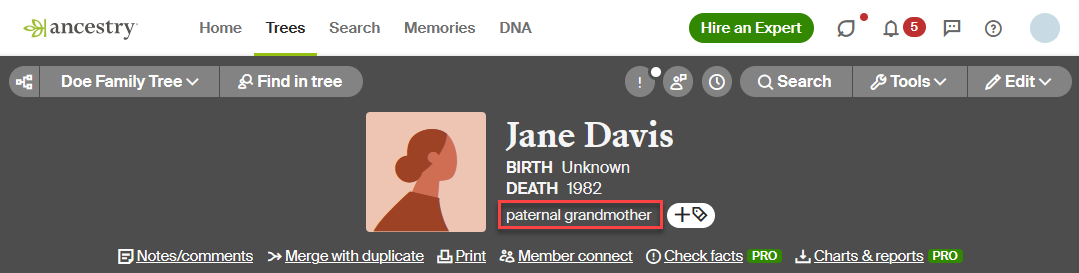
- From someone's profile page, click their relationship to you and select Print.
- In the top-right corner, click Print this page and choose OK or Print.
Frequently asked questions
Can I print my family tree using the Ancestry App?
Printing trees isn’t currently available in the Ancestry app. To print your tree, go to the Ancestry website on a computer, phone, or tablet and follow the steps in this article.


