Historical records and photos can help you build your family tree and make new discoveries about your ancestors. Ancestry® has a powerful search tool that grants you access to our vast historical databases.
Sometimes, search results may not look especially relevant. When this happens, we recommend “playing around” with your search in the ways outlined below. Often, finding what works best is just a matter of repeating a search with a few tweaks. These strategies can help you find a smaller pool of more relevant results.
Add information to your search
Searches with more information usually return better results.
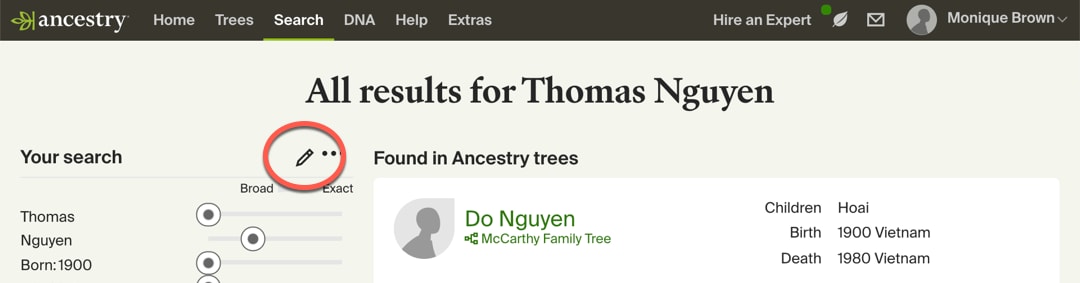
From your search results, add information to your search by clicking the pencil in the top-left corner of the page.
Tips
- These facts tend to be most useful in a search:
- name
- birthdate
- locations
- relatives’ names
- Try to include at least one date in your search. Dates are used to estimate a possible lifespan. For example, if you enter a birthdate of 1800, the search results would not include someone who was married in 1750 or someone who died in 1935.
- If you aren’t confident about a certain fact, try guessing. Even rough estimates can help.
Make your search more exact
If you’ve searched with enough information and your results don’t seem relevant enough, try adjusting the “exactness” sliders. By default, the sliders are set to broader settings.
A search will always prioritize results with the closest matches, even when sliders are set to “broad.” However, moving the sliders farther to the right may improve your results by bringing more relevant records closer to the top and returning fewer results to sift through.
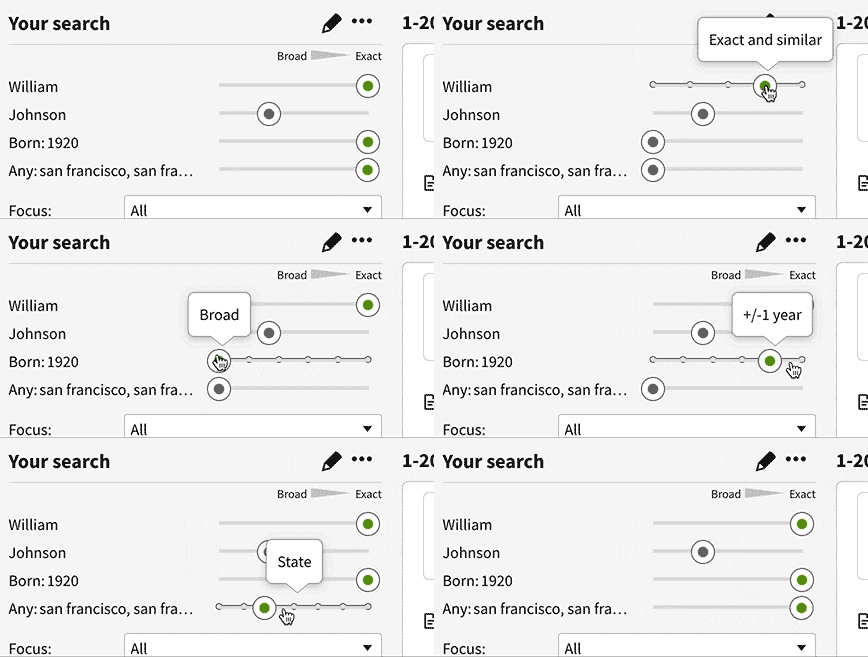
The farther to the right you move a slider, the more closely a record will need to match the information you entered. Hover over each notch in a slider to see a tool tip explaining the setting. Try searching with the sliders at different positions to see how it changes your results.
Tips
- A person’s name may be spelled differently on different documents, or their initials may have been used instead of their full name. Adjusting the slider settings for names can help account for:
- phonetic variations, like “Smyth” instead of “Smith”
- name variations, like “Bob” instead of “Robert”
- different spellings, like “Leslie” instead of “Lesley”
- initials, like “M. Brown” instead of “Monique Brown”
- Names, dates, and places weren't always recorded or transcribed accurately, especially in records created over a hundred years ago. Try using broader settings for older records and more exact settings for recent ones.
- Be careful when making birthdates exact. In some documents, birth years were inferred based on people’s ages. Try allowing for at least a year difference in birthdates.
- For example, if a child was 10 years old in 1900, a census taker may have inferred a birthdate of 1890. However, depending on their birthday, the child may have been born in 1889.
- Be careful when making locations exact. This means the record must have exactly the same place as the place you choose, and it may be too restrictive. So if you aren’t finding what you are looking for, you might try selecting “County" or “County and adjacent counties" instead.
- For example, if you choose “Oakland, Alameda, California, USA” for a birthplace in your search, but a record has a birthplace of “Alameda, California, USA,” then that record will not be returned in your search results.
Try filtering your results
If you’re looking for a specific kind of result, use the filters on the left side of your page of search results to narrow the results.
Tips
- These filters are often most useful:
- Birth, marriage & death
- Census & voter lists
- Military
- Filtering by record location and record date can focus your search in the right place and time.
Try adjusting the scope of your search
At the bottom of the search form are a few options to adjust the scope, or focus, of your search. These controls allow you to search within a smaller set of records and collections.
Searching within a limited set can help you exclude irrelevant results. This technique may sometimes exclude too many results, so check out the tips below for help.
Scope options include the collection focus and checkboxes for results types. When you adjust these options, they'll stay the way you set them for future searches (until you change them).
Collection focus
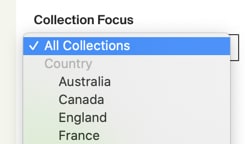
By default, your search includes all collections, but you can narrow the scope to a certain geographic region or ethnicity.
Checkboxes
Below the collection focus, four checkboxes allow you to include or exclude certain types of results. By default, all types of results are included. To exclude an option from your results, uncheck it.

Tips
- If your research is focused on a specific geographic region, check the collection focus drop-down to see if the region is in the list.
- If you want to focus your research on historical records, uncheck the options (like stories or photos) you don’t want in your results.
- If you need to run a very broad search (like first and last name only), consider adjusting the scope options to narrow your results.
- Once you're done with your targeted research, you may want to change the scope options back to the defaults (All Collections, all boxes checked) so that the settings you changed don’t persist in your future searches.


