Signing in
- In the top-right corner of any page on Ancestry, choose Sign in.
If you don’t see sign in, you or someone else may already be signed in. To switch accounts, follow the steps for signing out and then signing in.
Sign in to Ancestry
- Sign in with an Ancestry account (email/username and password), Google, or Apple.
Sign in with email/username
Enter your email/username and password > Sign in. (Need help with your password? See resetting a forgotten password.) If prompted, enter the two-step verification code > choose whether or not to Remember this device > Submit code.
Sign in with Google
Choose Sign in with Google > if asked, choose an account to sign in with or use another account > enter your email or phone and select Next > enter your Google password and select Next > if asked, Verify it's you. Need more help? Get help from Google.
Sign in with Apple
Choose Sign in with Apple > enter your Apple ID > enter your Apple password > if asked, enter the Apple verification code > if asked, choose whether or not to trust this browser > confirm using your Apple ID with Ancestry by selecting Continue. Need more help? Get help from Apple.
- You're signed in. Enjoy using Ancestry!
If you’ve signed in on a public computer or mobile device, remember to sign out of Ancestry when you’re done.
Signing out
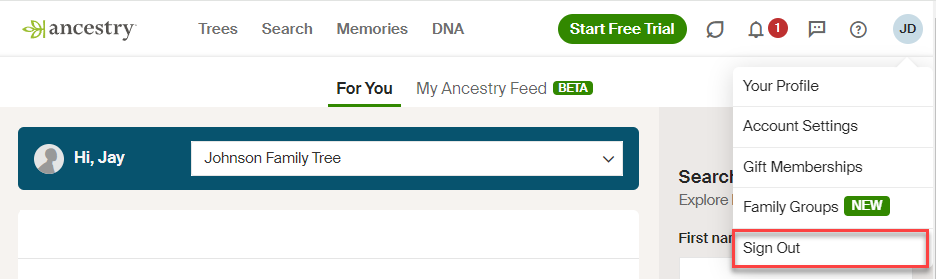
- In the top-right corner of any page on Ancestry, select your name, username, or profile picture and choose Sign Out.
Troubleshooting
Forgot your password
If you don’t know your password, see Resetting a Forgotten Password.
Password not working
If you've reset your password and your new password isn't working, clear your cache and cookies and try again.
Verification code trouble
For help with verification codes, select the company whose code you’re having trouble with:
No account
To sign in to Ancestry, you must first create a free account.
Page, button, or link isn’t working
If a page, button, or link isn't working, see Fixing Page or Button Problems on Ancestry.
Contact us
Click here.


