Use a map to explore your family's heritage. See colorful visualizations of where your ancestors lived in relation to each other and discover their distinct paths.
Accessing the tree mapper
To view the tree mapper, you must be the owner or editor of a tree, have an active Ancestry® Pro Tools membership, and set who you are in the family tree (this is a different step than setting the home person). If you're the owner or editor of multiple trees, set "who you are" for each tree.
- Go to your family tree.
- In the toolbar on the left, click the View button at the top.
- Select Tree Mapper.
Using the map
To move the map, click and hold the left mouse button while you drag the mouse. The map will move as the mouse moves.
On the map, you can use these tools:
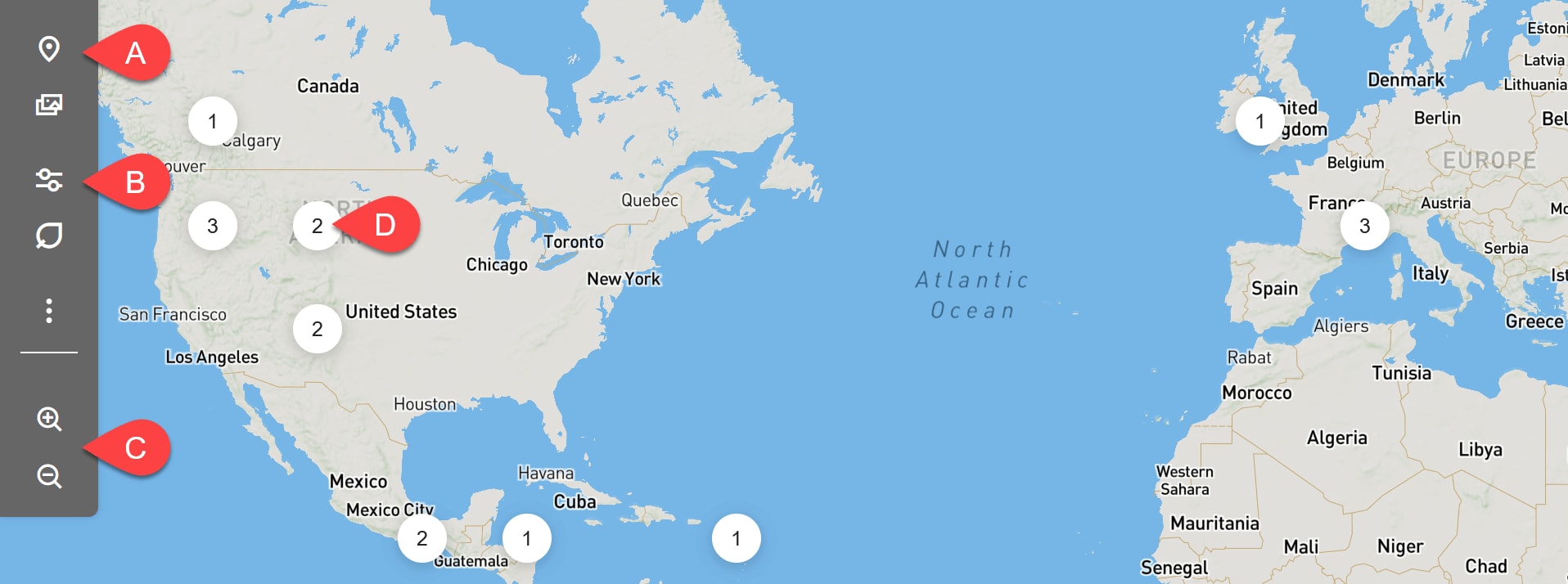
- Tree view: Switch back to a family tree view from the map.
- Map filters: Access the map’s filters.
- Zoom in or out: Make the map larger or smaller for more or less detail.
- Circled numbers: Indicate how many people in an area have facts or events based on your selected filters. Click a numbered circle on the map to see details.
Filtering the map
The tree mapper automatically shows information about any event for your direct line ancestors (the people “you” descend from). Using filters, you can customize who or what you see.
- To change what you see on the map, click the filter
 icon in the left toolbar or Map Filters in the top-right corner.
 - On the right side of the page, add or remove filters. If your map returns no results, change or clear your selected filters.
- Filter by name: Enter a first or last name and select it when it appears. Repeat to add more names. To remove a name, click the X.
- Filter by location: Enter the location’s name and select it when it appears.
- Filter by time: Enter a year for an exact search or click "Add range" to enter a specific date range.
- Events: Filter by birth, marriage, death, burial, lived in, or any event. Choose one event, select "Any Event" to search all, or none to search without events.
- Family line: Filter by direct line ancestors (people you descend from), paternal line, maternal line, end of line, or people without relationships.
- MyTreeTags™: Filter based on universal or custom tags you’ve added. For help modifying these, see MyTreeTags™.
Reviewing results
- (Optional) Apply filters to customize the map and show specific information.
- Click on a numbered circle to see details.
- In the right side panel, review the results.
- By default, up to 10 people are shown.
- To see more, scroll down and click Load More. Repeat as needed.
- To change who or what you see, change or clear your selected filters. Or, select a different numbered circle on the map.
- Click on a person’s name to go to their profile page.
Frequently asked questions
Which trees can I use the tree mapper with?
The tree mapper can only be used on trees you own or have been invited to edit. For other trees, ask the owner to invite you as an editor or change your role to editor.
Why don’t I see people or relationships on the map?
The map shows people and relationships based on who “you” are in the family tree. If you don’t see people or relationships on the map, follow these steps to Assign Who You Are in Your Ancestry® Tree. This setting is different than the home person. If you're the owner or editor of multiple trees, you must set “who you are” for each tree.
If you've already set “you” and you still don't see people or relationships, try changing or clearing the filters you’ve selected.
How do I download or print the tree mapper view?
The tree mapper view and its results cannot be downloaded or printed at this time.
Is the tree mapper available in the Ancestry app?
No. The tree mapper and other Pro Tools features are not currently available in the Ancestry mobile app. However, they are available on the Ancestry website with an active Pro Tools membership.


